

Contents
Testing your internet speed
Before starting to improve your connection’s performance, it’s a good idea to run a speed test to get a baseline reading of how your broadband is performing.
Speed tests will also help to show whether the fixes you implement have helped improve your speeds.
To do this, head to speedtest.net, and click the “Go” button to begin the test.
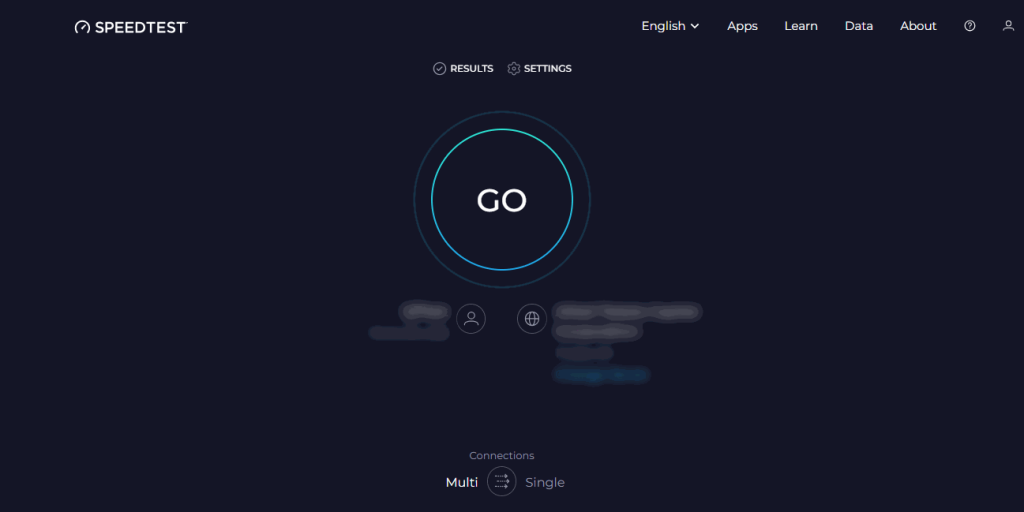
After the test is complete, you will see the results page, which should look something like this:
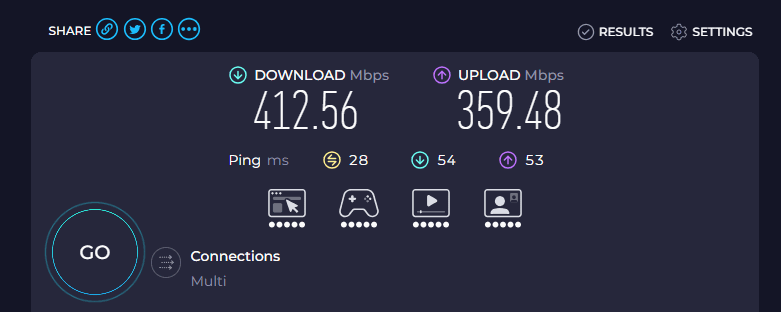
- Your download speed refers to how fast your broadband connection can download data from the internet. This is the most important thing to pay attention to in most cases.
- Your upload speed refers to how fast your broadband connection can upload data to the internet.
- Your ping measures how quickly your connection can download/upload small packets of data. This is more about responsiveness than speed.
What is a good broadband speed?
You might be wondering what a good result looks like when running a speed test, and what having a slow connection actually means.
In the UK, Ofcom’s Universal Service Obligation defines a 10 Mbps download speed as the absolute minimum that all households need to be able to use the internet.
However, in most cases, this is not enough bandwidth to ensure a good internet experience.
For most households, a minimum of 20-30 Mbps is needed to avoid buffering when watching YouTube videos for example, and downloads feeling very slow.
The precise amount of bandwidth you need depends on how many people get online every day, and how you use the internet.
The more people online, and the more data being demanded, the more speed you need to meet every device’s bandwidth requirements without experiencing slowdowns.
You can use our internet speed needs calculator to get an idea of how much bandwidth you need as a family.
Diagnosing potential problems
Before we begin explaining how to improve your broadband speed, it’s worth thinking about the situations in which your broadband feels slow, so that the fixes you try can be more targeted.
We recommend doing some experimenting to find out when your broadband is slow, and when it is fast, or faster (if ever).
For example:
- If your speeds are better when plugging your computer into the router using an Ethernet cable, compared to using WiFi, this could indicate a WiFi issue.
- If your speeds are worse on certain devices, this could indicate a software or hardware issue with that device.
- If your speeds are worse in certain parts of the house, this could indicate a WiFi dead spot.
- If your speed worsens at certain times of the day, this could indicate network congestion.
Depending on the situations in which your speeds are slow or fast, you might like to be more targeted with the fixes you decide to implement. For example, if you know you have a WiFi issue, you might like to try WiFi-related fixes first.
It is also entirely possible that your broadband speed is slow all the time, potentially slower than what you are paying for. We have explained some ways to help with this issue further on in the article.
Accessing router settings
Some of the fixes we have discussed below require changing settings on your router, which is easier than you might think.
To access your router admin panel, you first need to type your local IP address into your web browser.
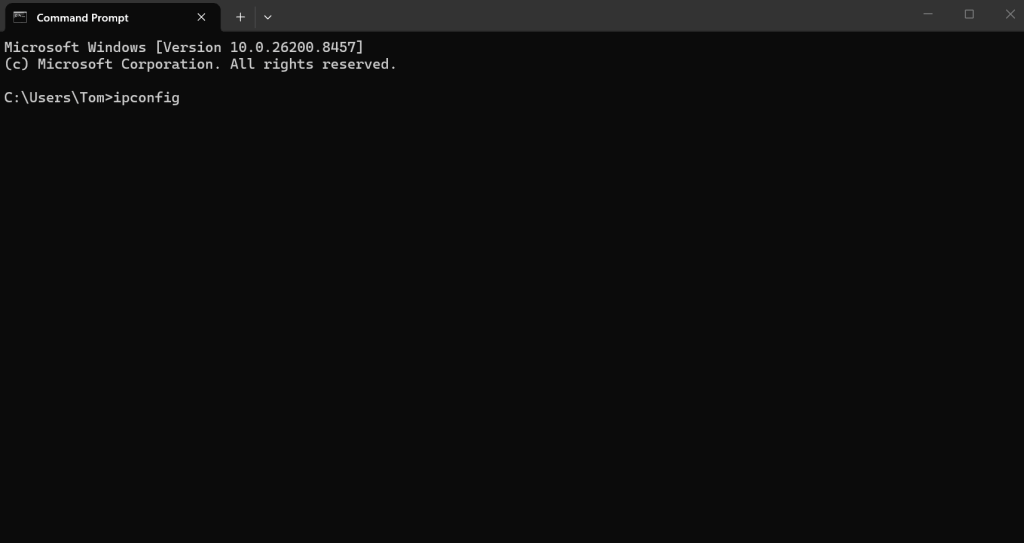
To find your local IP address on Windows, open the command prompt by typing “cmd” into your computer’s search bar in the bottom left.
Once the Command Prompt window is open, type in “ipconfig”, and press enter.
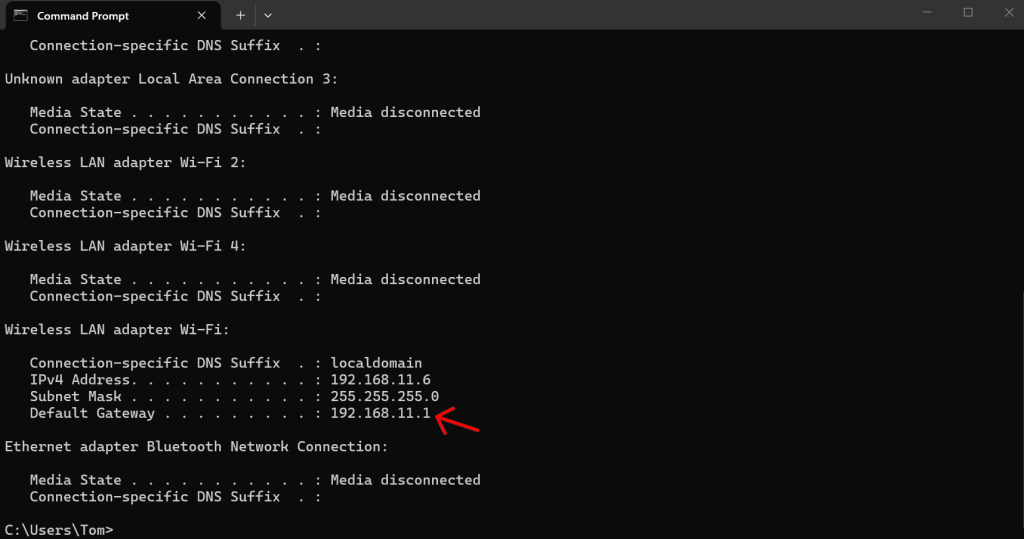
Here, you will see some details about your broadband connection. Look for the line that says “Default Gateway”. This number is your router’s IP address.
On Mac, search for “System Preferences”, then go to “Network”, and look for the IP address shown.
Type this IP address into your web browser, and you will see a login screen.
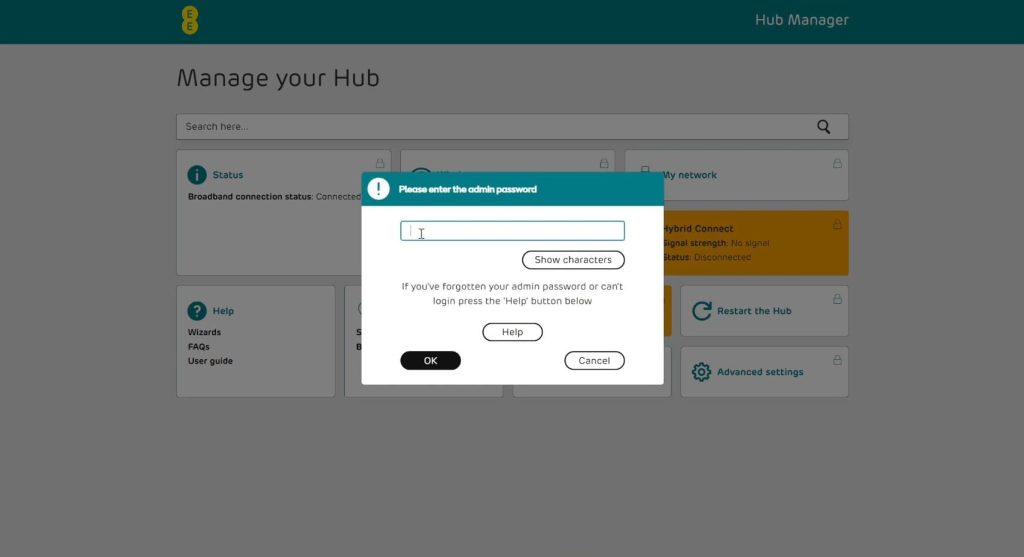
The login details for this screen are usually printed on a sticker on the outside of your WiFi router.
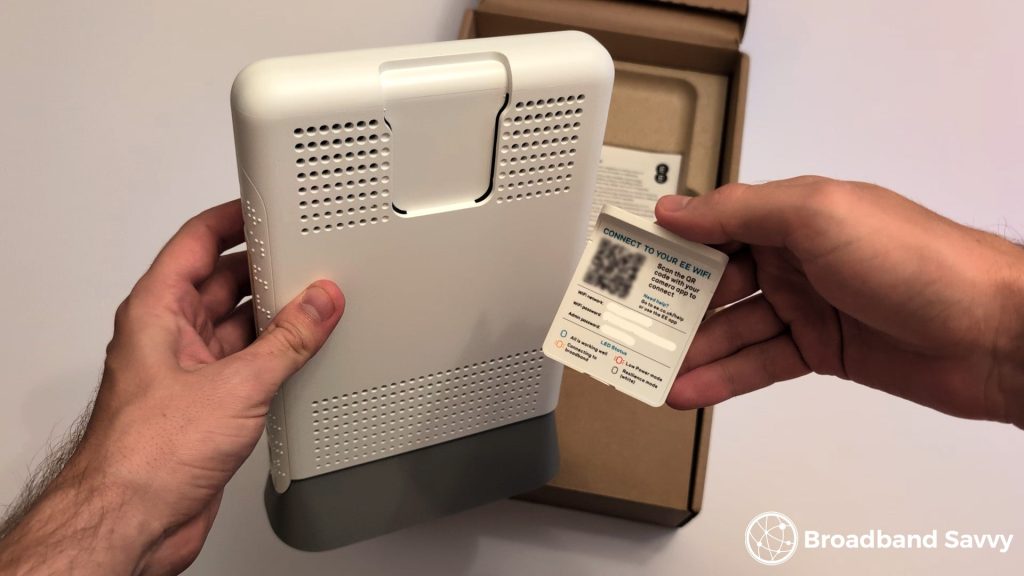
Once you log in, you’ll be able to adjust connection settings, which can help improve your speeds in certain situations we’ve explained below.
How to improve WiFi speed
Many broadband speed-related issues are to do with WiFi, so first, we’ll explain how to fix common problems related to your WiFi signal and speeds.
1. Switch WiFi channels
This is the first thing we recommend for most people struggling with slow WiFi speeds.
Different routers in your neighbourhood broadcast WiFi signal on different channels. When set up, your router will decide on the best channel to use.
The problem is, if your router ends up using the same channel as another neighbour close by, this can lead to signal interference and slow speeds.
We have found that sometimes, the router that your broadband provider supplies doesn’t do a very good job of keeping you on an interference-free WiFi channel, resulting in worse performance.
To see if you might be experiencing channel interference, there are apps on your phone you can use, such as WiFi Analyzer.
Using this app, you can see the other WiFi networks in your area visually, and what channels they each use.
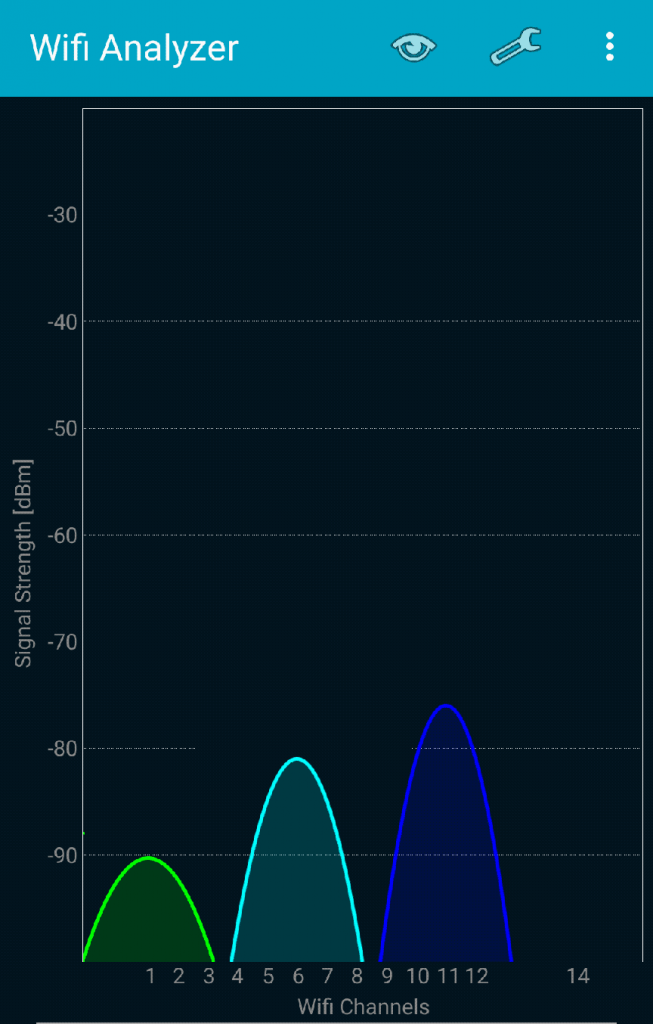
The channels are shown on the x-axis along the bottom, and the height of each line shows its signal strength.
In this case, there is no overlap between the three WiFi hotspots shown on the graph. But if your connection were to overlap significantly with other lines, it may make sense to change the WiFi channel your router is using to something with less interference.
You can usually change the WiFi channel by logging into your router’s admin portal, and looking for WiFi settings.
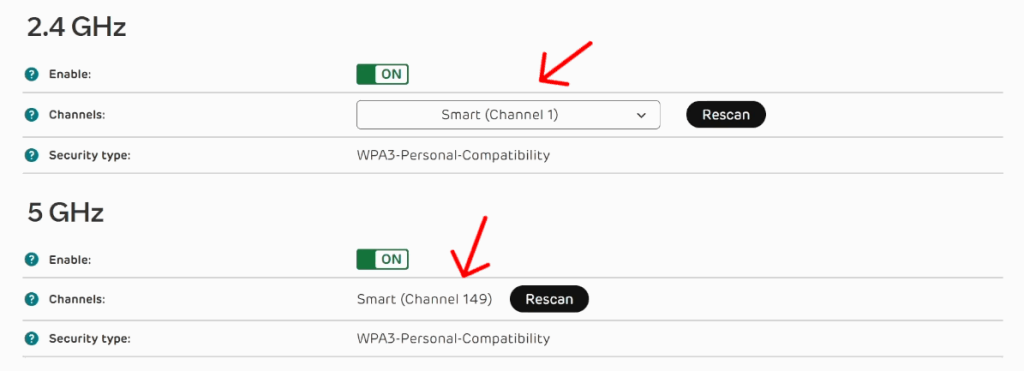
2. Fix WiFi interference
Apart from other WiFi networks, there are different sources of interference that could be affecting your signal and speeds.
For example, if you have an old house that has been renovated, especially to extend the property, you may have brick internal walls, which can often block WiFi signal.
Water sources such as fish tanks and vases, as well as other devices that emit radio waves, such as baby monitors, can also interfere with your home WiFi.
To figure out if this issue is affecting you, and to check your WiFi signal strength more broadly, download our Signal Test app for Android.
Navigate to the WiFi signal testing page by tapping the button in the bottom right, then you will see your WiFi signal graded on a scale from 0 to 100.
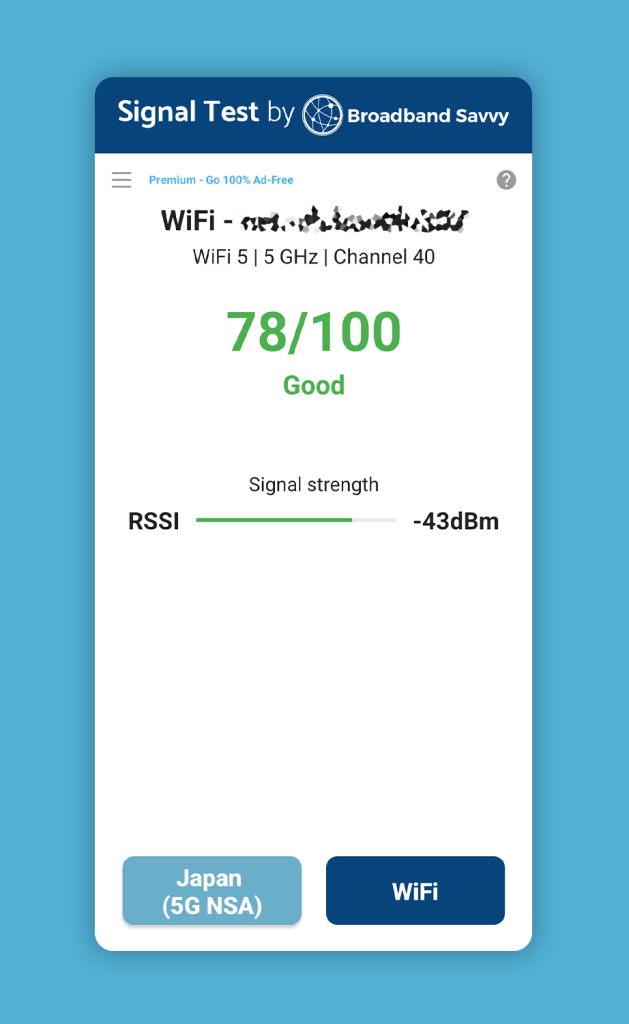
Walk around the house, and look for places where your signal is dropping off due to interference, for example behind walls or other obstacles.
You might also like to test your signal while using other devices you suspect may be causing interference. If you find a potentially problematic device, try to move it away from your wireless access point.
If you don’t have an Android phone, meaning you can’t use our Signal Test app, you can also perform speed tests in every room of the house to get an idea of where your WiFi signal is at its weakest.
3. Switch frequencies
As well as broadcasting on different channels, as we touched on above, WiFi routers also use different radio frequencies.
Modern routers broadcast on 2.4GHz, 5GHz, and 6GHz bands. Old routers will just use 2.4GHz and 5GHz.
The higher the gigahertz, the faster the band. The lower the gigahertz, the more stable the connection will be at long distance, or when interfered with.
Most modern routers broadcast a single WiFi network, and your device decides which frequency to use at any given moment.
However, you can switch to a different band if needed to get faster WiFi speeds.
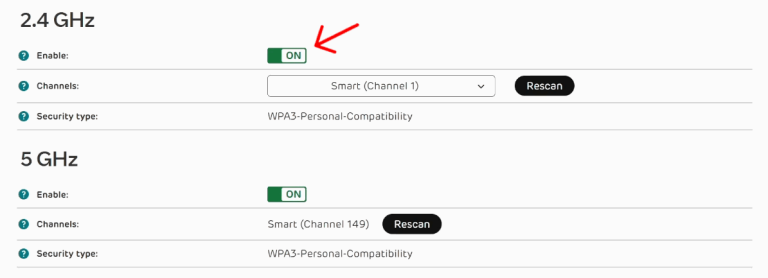
To do this, you’ll need to log into your router’s admin portal, and go to WiFi settings.
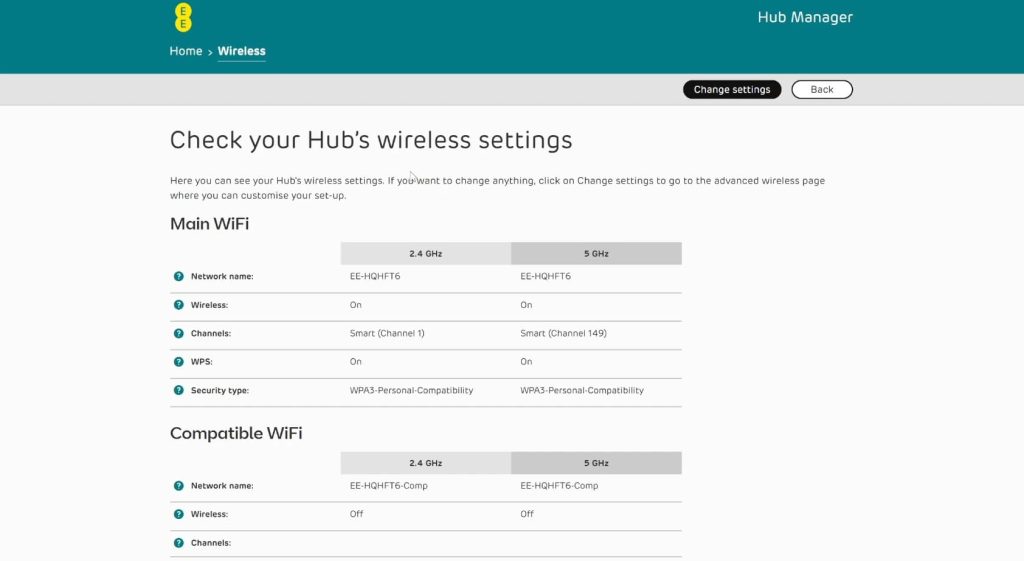
Sometimes, you can turn off the 2.4GHz band entirely.
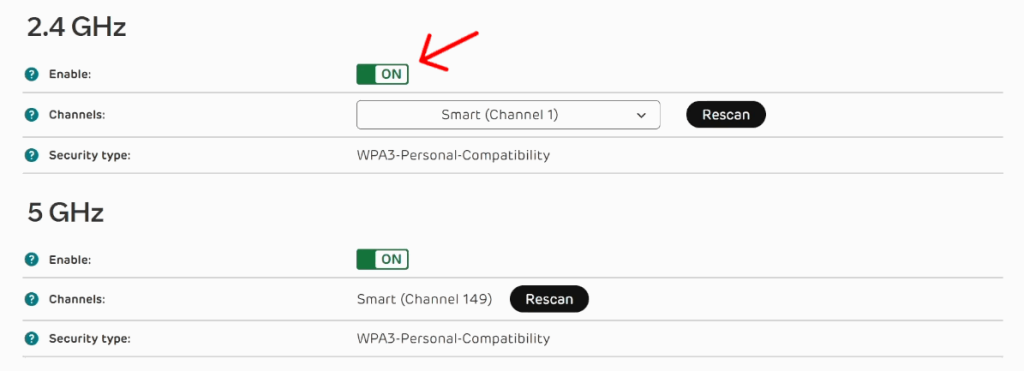
On other routers, you might be able to turn on “band splitting”, which will result in the different bands being broadcast as different WiFi networks.
With this enabled, you will be able to choose which WiFi band each device uses independently.
4. Reposition your router
If you have found WiFi dead spots in your house, whether caused by interference or not, you may be able to help fix this by repositioning your WiFi router.
Most often, people have their router installed where their broadband comes into the house, which is usually by the front door.
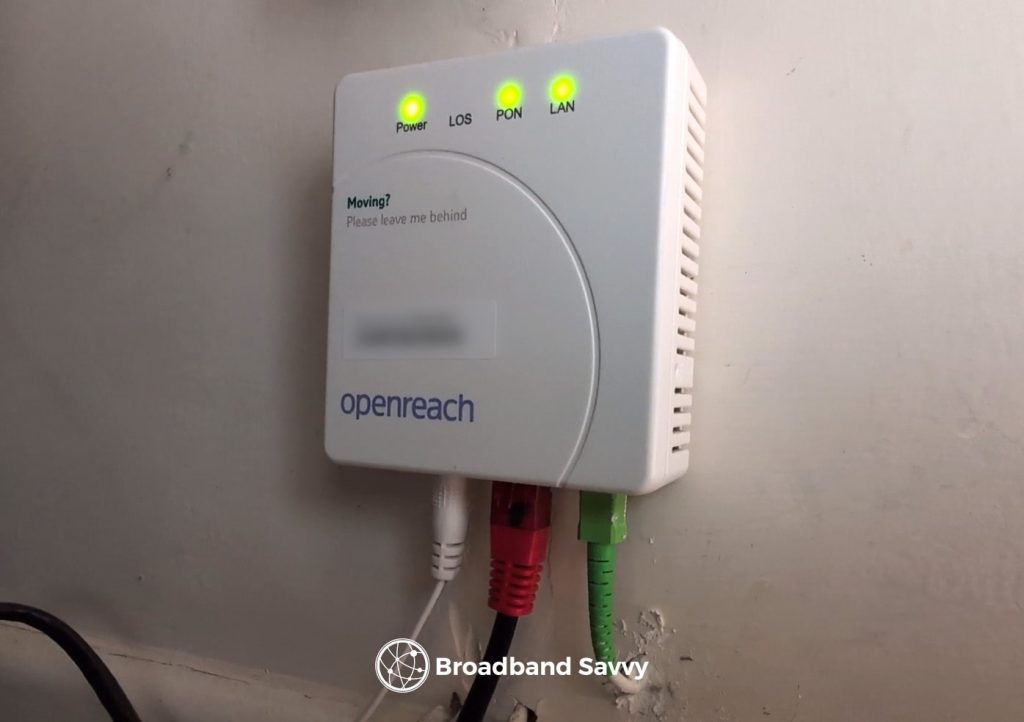
However, if you invest in a long enough Ethernet cable, there is generally nothing stopping you from moving the router somewhere more central, in order to get better WiFi signal.
Ethernet signal only begins to degrade after about 100m of distance, so it is usually possible to relocate the router somewhere more central in most houses. Or, you may like to position the router closer to your most-used devices.
The only downside to doing this is the problem of routing the Ethernet cable cleanly. You might like to buy a flat cable and put it under the carpet in your house in order to hide it from sight for example.
5. Use mesh WiFi or extenders
If it isn’t practical to reposition the router, you may also like to use a mesh WiFi system, or buy WiFi extenders.
Mesh in particular is a very common way to improve WiFi signal in larger houses, or in properties with a lot of sources of interference, such as brick internal walls.
How it works is, you have a central mesh unit, which your broadband connection plugs into. Then, you have as many other mesh nodes as you need in different parts of the house – usually two or three – to provide better signal strength even at distance from the original unit.
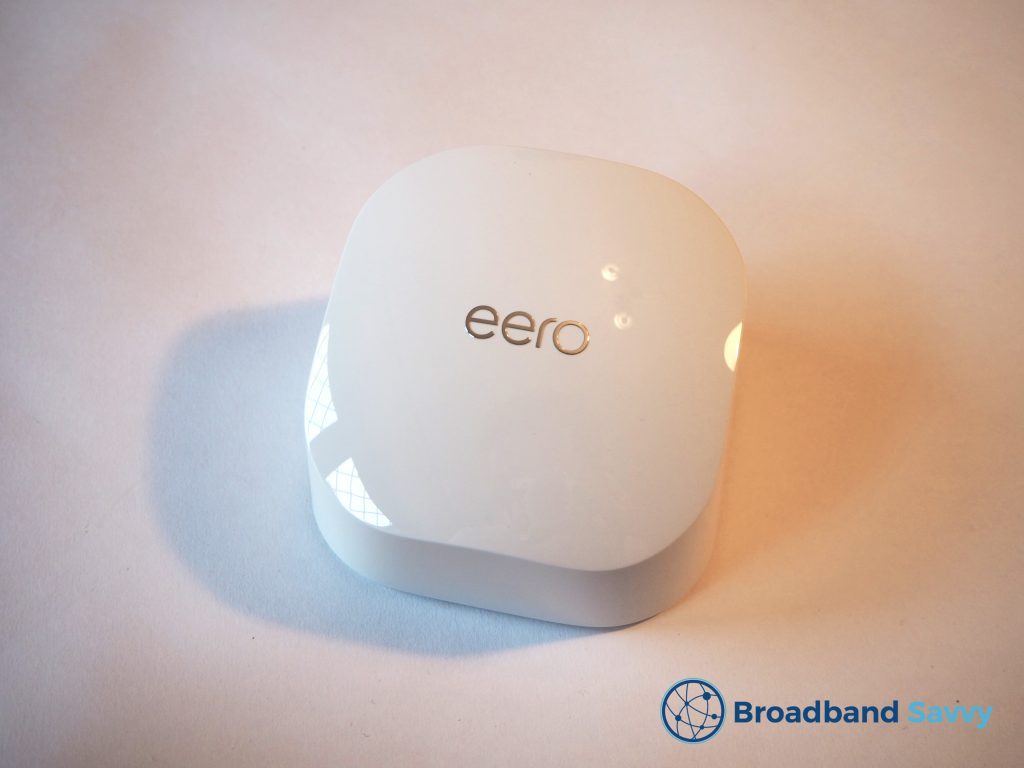
Everything is on the same WiFi network, so you don’t need to worry about switching hotspots. As devices move around the house, they will automatically connect to the nearest mesh node.
Most of the time, for convenience sake, the mesh units communicate with each other wirelessly. When they do this, they still offer better signal and speeds than using a single router on its own, because the signal can be relayed from node to node.
However, you can also often connect mesh units together with an Ethernet cable in order to get the fastest possible speeds.
6. Upgrade WiFi router
If you don’t have a very large property, and your signal isn’t being interfered with, it may not be that you need to invest in a mesh WiFi kit.
Instead, you might be able to get better WiFi just by upgrading your router, especially if it’s quite an old unit.
For example, you may have an older BT Smart Hub 2, or Plusnet Hub 2. These are quite outdated but still very common bits of kit in many houses around the UK.
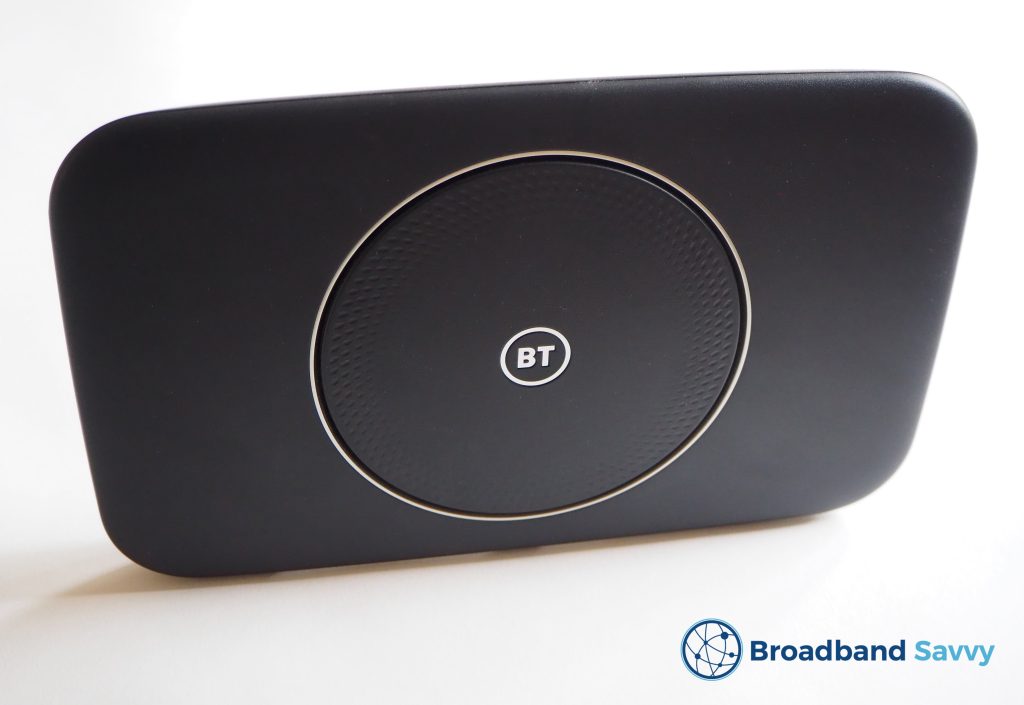
By making the upgrade to something with WiFi 6 or WiFi 7 – newer WiFi standards – you should see a good increase in WiFi performance.
If you switch broadband providers, you should get a decent upgrade, because most companies are shipping WiFi 6 or 7 tech these days.
Discover the best broadband providers on the market at the moment to find a deal with a better WiFi router to switch to.
7. Switch to Ethernet if possible
To get the absolute maximum download and upload speeds, it is sometimes best to ditch WiFi entirely.
This is not possible on phones, tablets, and other devices without an Ethernet port.
However, for gadgets such as computers and games consoles, it’s a good idea to plug them into your router using an Ethernet cable, rather than using WiFi, if possible.
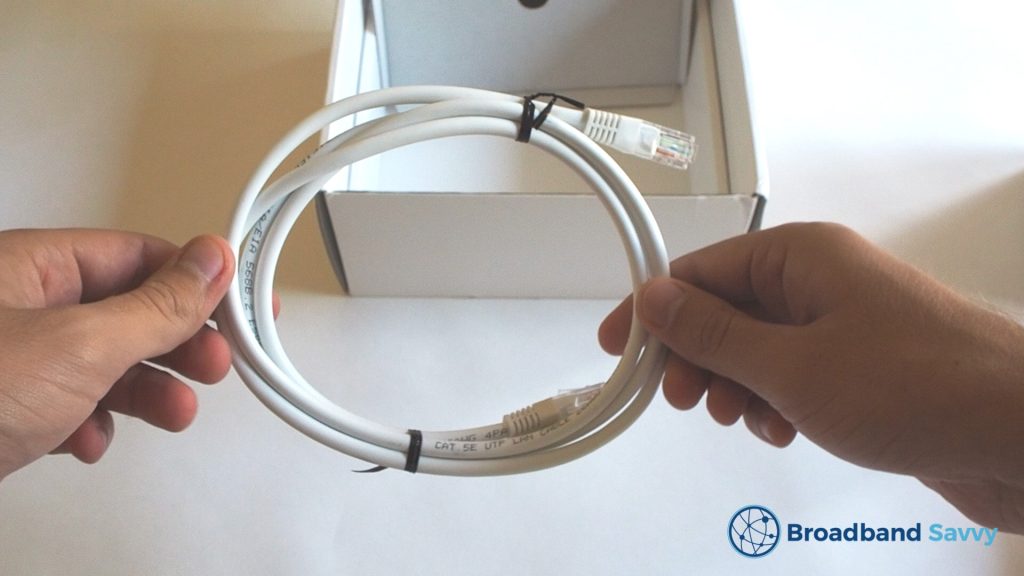
Doing this can also reduce the amount of overall load on your WiFi network, helping to improve speeds on other devices such as phones and tablets as well.
8. Use a powerline adapter
If your computer or games consoles are located far away from your router, or from the nearest mesh node, you may like to use a powerline adapter to bridge the distance.
A powerline adapter is a device that allows you to use the electrical cables in your house for wired internet, with no need for any DIY work, and no effect on your home’s power cabling.
You plug one adapter into a power socket near your router, then connect the two using an Ethernet cable. Then, you do the same with your computer or games console and another powerline adapter.
After pairing the two adapters, you’ll have a wired connection from your device to your router, even from opposite ends of the house.
Powerline adapters’ real-world speeds are not as fast as using a direct Ethernet connection, often reaching a maximum of about 300-500 Mbps.
However, they can be faster and more consistent than WiFi, and offer lower latency as well, making them a great choice for gamers in particular.
How to improve broadband speed
If you have a speed problem that’s not necessarily related to your WiFi performance, try the steps below to get faster broadband.
9. Restart your router
Sometimes the simplest solutions are the most effective.
You can often improve your broadband speeds just by restarting your router. Doing this can force the device to clear stale, cached rules it is using to establish an internet connection, allowing it to get faster speeds.
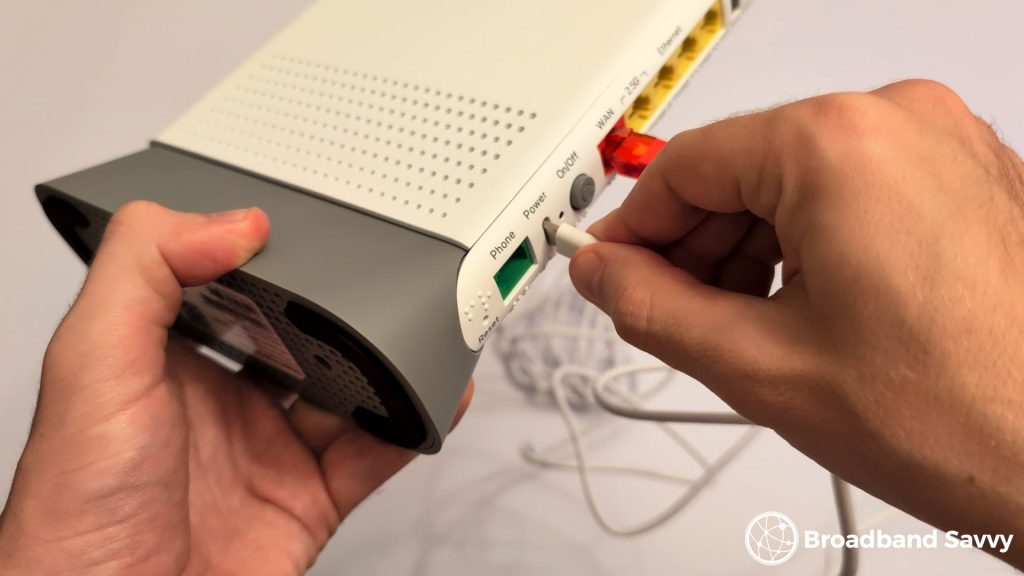
To restart your router, unplug it from power, wait about 30 seconds, then plug it back in. Wait a few minutes for the router to start up again, and reconnect to the internet.
10. Change DNS servers
Every time you navigate to a website, your device has to communicate with a Domain Name System (DNS) server before a connection can be made.
The DNS essentially translates domain names (such as broadbandsavvy.com) into IP addresses (such as 192.0.0.1) that your computer can interpret, so the computer can find the server that the website is hosted on and request data from it.
Most of the time, by default, your router will be using your broadband provider’s DNS to facilitate this.
However, default DNS can sometimes be a bit slow, introducing delay when browsing the web.
To fix this, you can use Cloudflare DNS rather than your broadband provider’s service.
To do this for your whole broadband connection, log into your router, and navigate to internet settings, also sometimes called IPv4 settings, and look for DNS Servers or DNS.
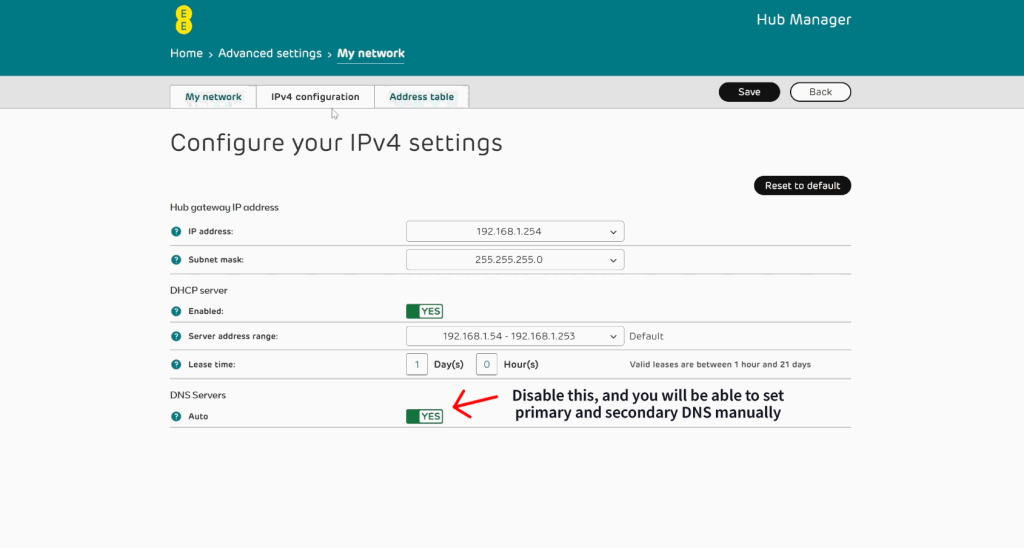
Set the primary DNS to 1.1.1.1, and secondary DNS to 1.0.0.1. Now, you’ll be using Cloudflare’s potentially much faster DNS service.
You can also follow the tutorial below to change your DNS on a Windows computer.
To change DNS on a Mac, go to System Settings > Network, and choose your active connection. Then click Details > DNS, and set the primary and secondary DNS as we described above.
11. Update router firmware
If restarting your router didn’t fix things, it may need a firmware update.
Firmware is basically your router’s operating system. If the software is outdated or has bugs, your broadband may be much slower than you’re expecting.
Most modern routers automatically install their own firmware updates, but this isn’t always the case.
To update firmware, log into your router, and look for the firmware section. This may be labelled as “update” or similar.
Here, you should be able to check if any updates are available, and install them if needed.
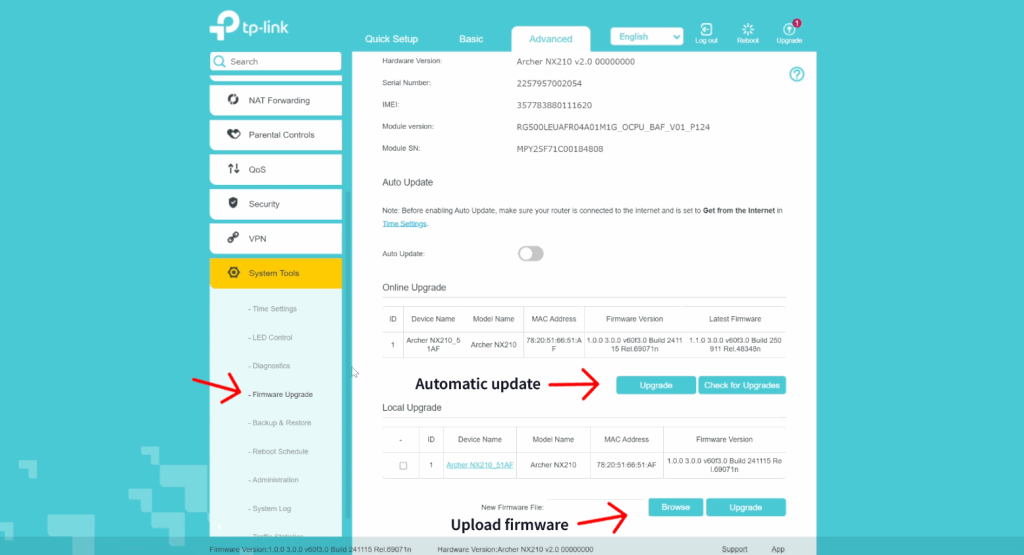
In case the device cannot install its own firmware updates, you may need to download the firmware directly from the manufacturer’s website, and upload it inside the router admin portal.
12. Restart your device
As well as restarting your router, it’s also worth quickly restarting the device you’re trying to get online with.
This is especially likely to be useful if you notice this piece of hardware is especially slow, or if it has not been restarted for a long time.
13. Hunt down and stop background updates
One of the most common reasons for slow broadband speeds is your connection running out of bandwidth.
This is especially likely to be an issue if you notice your speeds slow down only at certain times, or certain times of day.
This can occur because too many people or devices get online at once, but the most common culprit is hidden background downloads on devices connected to WiFi.
Look for:
- Games consoles downloading large, multi-gigabyte patches for games automatically.
- Computer programs or operating systems auto-updating.
- Phones or tablets automatically updating apps when connected to WiFi, especially apps that take up a lot of storage space (usually games).
Depending on the device, updates can sometimes be set to only run overnight, or at other times when no one else is online. Alternatively, you might like to tell the device to only run updates when prompted, rather than performing them automatically.
14. Find the root cause of bandwidth usage
If you have an excessive bandwidth usage problem, it might not be due to something predictable, such as automatic updates.
Fortunately, some modern routers allow you to view bandwidth usage by device, helping you find out what is causing your broadband to slow down at certain times of day.
For example, this could be:
- A newer device streaming video in 4K Ultra HD rather than 1080p HD.
- Someone in the house downloading or updating computer programs or large media files.
- A computer doing torrenting.
- Smart fridges, TVs, or other devices performing software updates.
To analyse bandwidth usage by device, log into your router’s settings, and look for “Online Monitor”, “Device Bandwidth” or similar.
You should then see bandwidth graphed by device, showing any abnormal spikes in usage attributed to particular pieces of hardware.
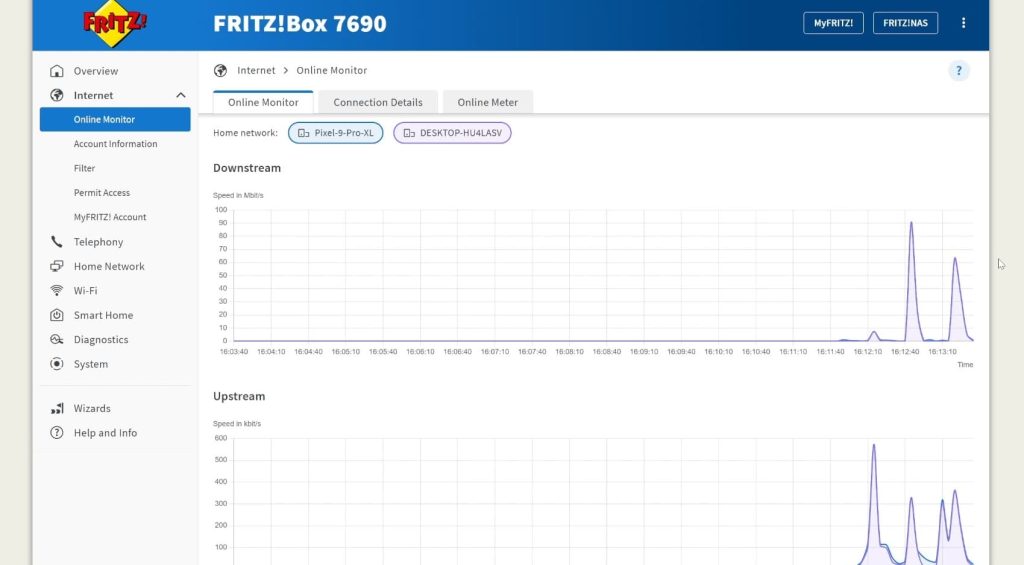
Just note that not all routers have the functionality to monitor bandwidth usage by device like this, so you may not be able to find this setting in your admin portal.
15. Clean up your browser
If you’re noticing particularly slow speeds when web browsing or downloading files on a specific device, it could actually be a problem with your web browser.
There are two main things you can do to improve browser performance.
The first is to clear cookies, which are small pieces of data your browser collects from websites to do things such as store user preferences. If it’s been a while since you last cleared cookies, you may have a lot of them, and they could be slowing you down massively.
How you do this depends a bit on the browser you are using.
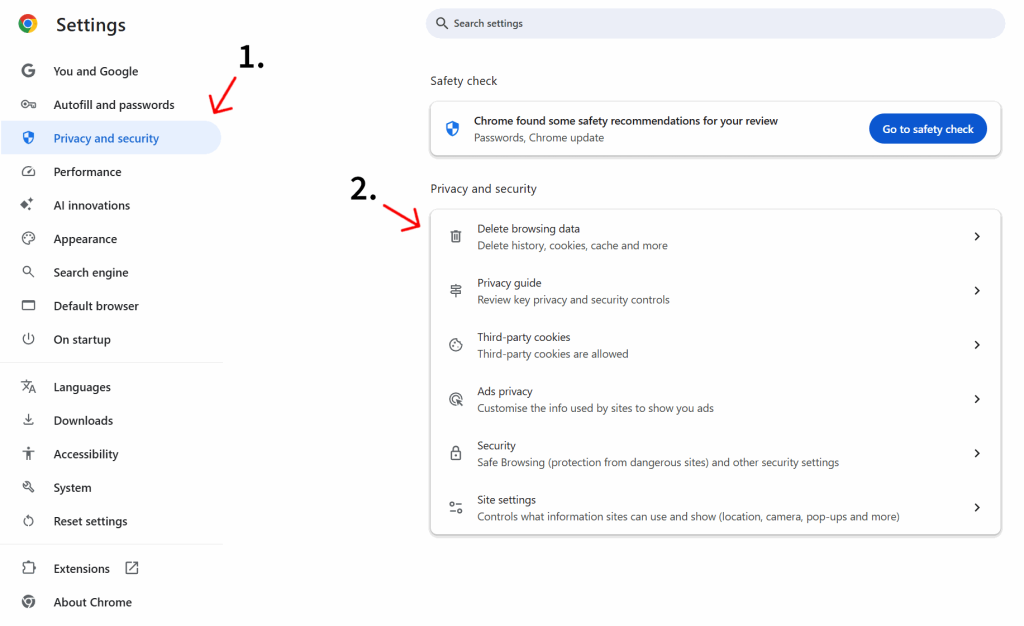
In Google Chrome for example, click the three dots in the top right corner of the screen, then click Settings.
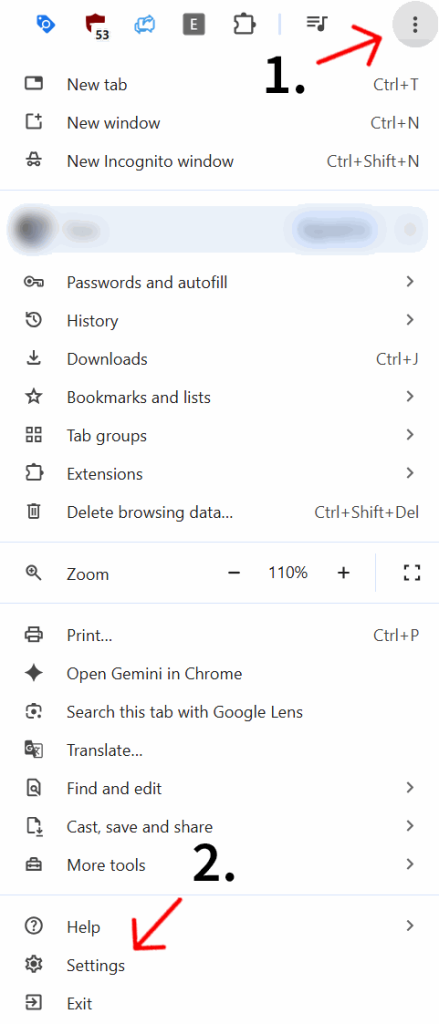
Once in the settings menu, navigate to Privacy and security > Delete browsing data.
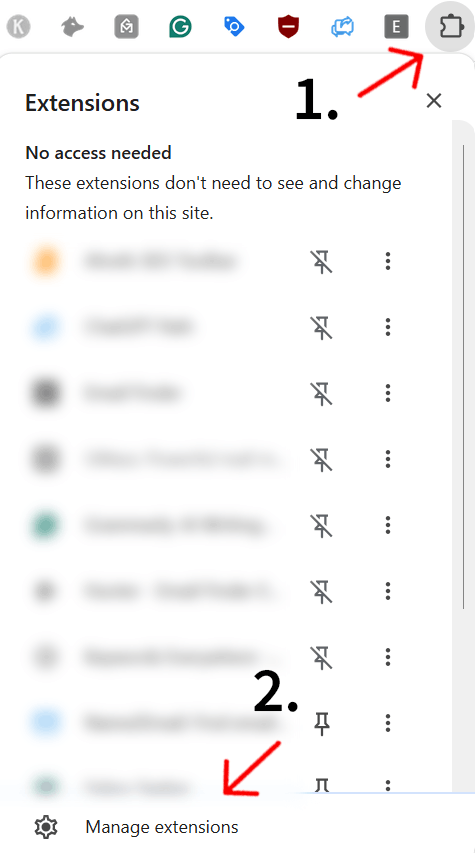
The second thing to do is disable extensions you’re not using. Each plugin you load when browsing adds extra delay, especially on slower computers.
In Chrome, click the puzzle piece in the top right of the screen > Manage extensions.
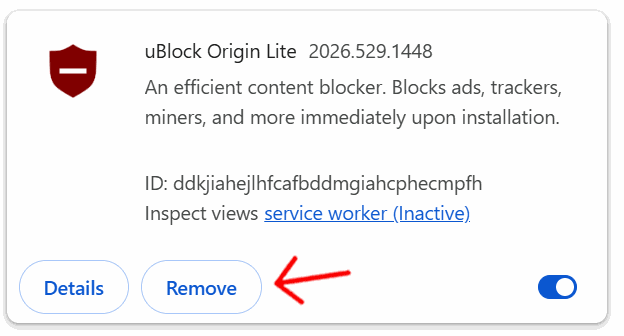
Then, click Remove on the extensions you are not using.
16. Use an ad blocker
The other thing you can do to improve how fast your browsing feels is to use an ad blocker, especially if your broadband connection is quite slow to begin with.
Internet ads are very media-intensive, meaning they often require large amounts of bandwidth for your computer or phone to download, especially video ads.
Ad blockers prevent ads from loading in the first place, giving you back more of your bandwidth you can take advantage of.
uBlock Origin is a good choice on Firefox, while you can use uBlock Lite on Chrome and Safari.
17. Change web browser
Some web browsers are faster than others, especially on mobile devices.
On Mac, Safari is quite fast. But the Windows default browser, Microsoft Edge, is not the best.
We recommend Chrome or Firefox on most computers. But on mobile devices, Brave can be a good choice, because it blocks ads for you as well.
18. Clean up your computer or phone
As well as removing cookies on your browser, it could also be that the internet feels slow because your computer itself is clogged up with cached files and bloat.
On older devices in particular, depending on the software you have installed, using the web may begin to feel slow.
We recommend:
- Deleting files you don’t need, and emptying the recycling bin. Try not to get too close to using up your storage limit.
- Uninstalling programs you don’t need.
- Running a malware scan – we recommend Malwarebytes for this. As well as finding viruses, this program can also find other malicious software that could be slowing you down.
- Updating to the latest available version of your operating system, which you can usually do in system settings.
19. Reposition your router (4G/5G broadband)
As we touched on above, repositioning your router can help you optimise how WiFi is distributed to the devices in your house.
However, if you use 4G or 5G internet rather than fibre broadband, your router positioning also affects the strength of the mobile broadband signal that the router picks up, massively affecting your download and upload speeds.
To find the best place to put your 4G or 5G router, we recommend using our Signal Test app for Android.
Install the app, and put the SIM you use for 4G or 5G broadband in your phone.
Then, on the main screen in the app, you’ll see your mobile signal strength scored on a scale from 0 to 100.
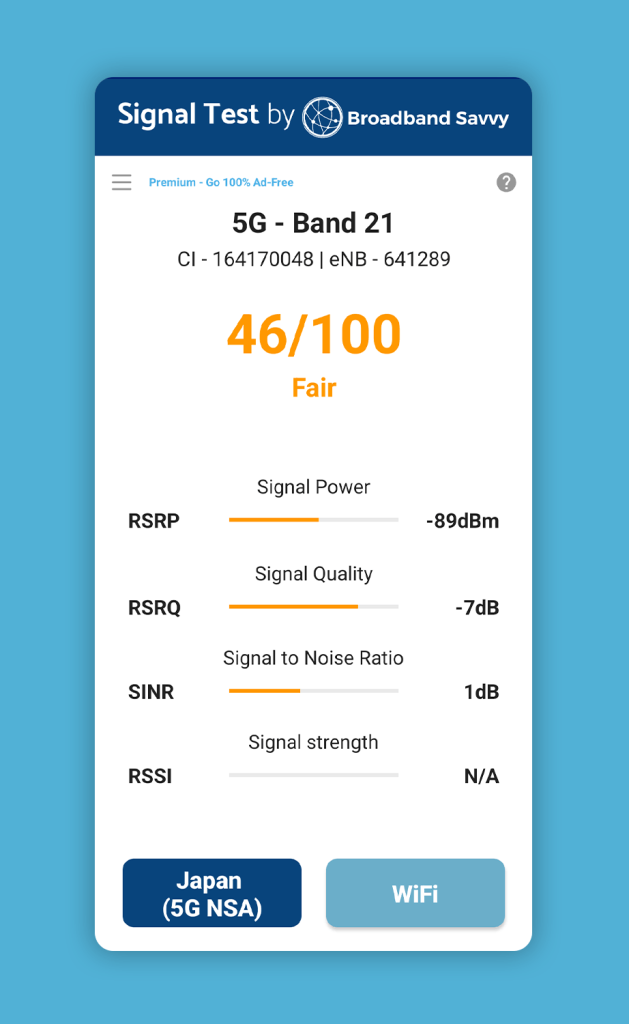
Walk around the house, and try to find the spot with the highest signal strength reading. Normally, this will be somewhere on the edge of the property, such as a windowsill.
Then, reposition your router in this spot, and run some speed tests to gauge performance.
With 4G and 5G routers, it can also be worth rotating the device to reorient its internal antennas, and then running more speed tests. At times, the exact orientation of your 4G/5G router can have a noticeable effect on its download and upload speeds.
20. Use an external antenna (4G/5G broadband)
If you cannot get strong mobile signal indoors when using 4G or 5G internet, you can also install an external antenna on your house to help pick up better signal.
This is particularly helpful in rural areas when you are a long way away from the nearest mobile mast. However, it can also allow you to improve your 5G broadband speeds in urban areas as well.
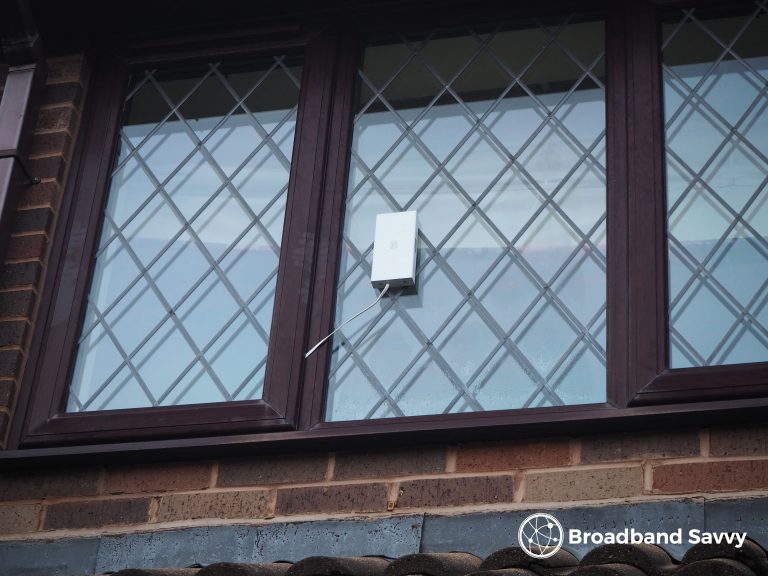
Usually, the antenna is affixed to the outside of your house using a special mount, or it may be able to stick to a window as well.
The antenna is weatherproof, and has a weatherproof cable you can use to feed signal back inside to where your router is.
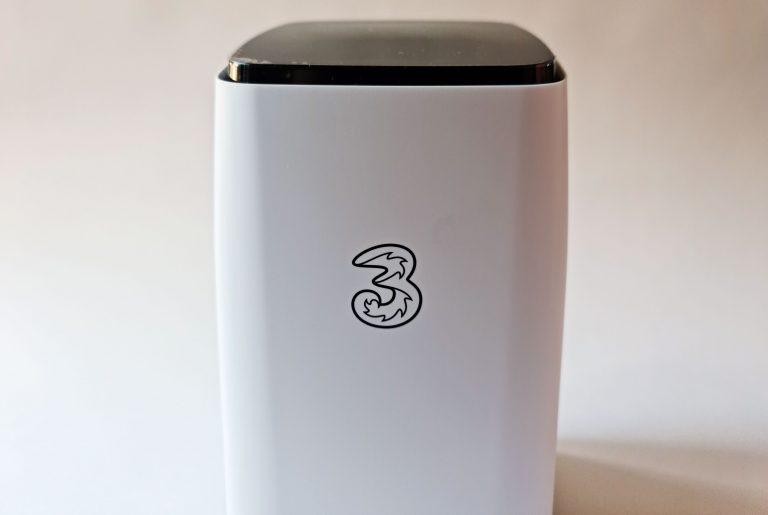
There are many different types of antennas on the market, but we like the Three 5G Outdoor Hub and the Waveform Quadmini, because they’re both quite small and easy to set up.
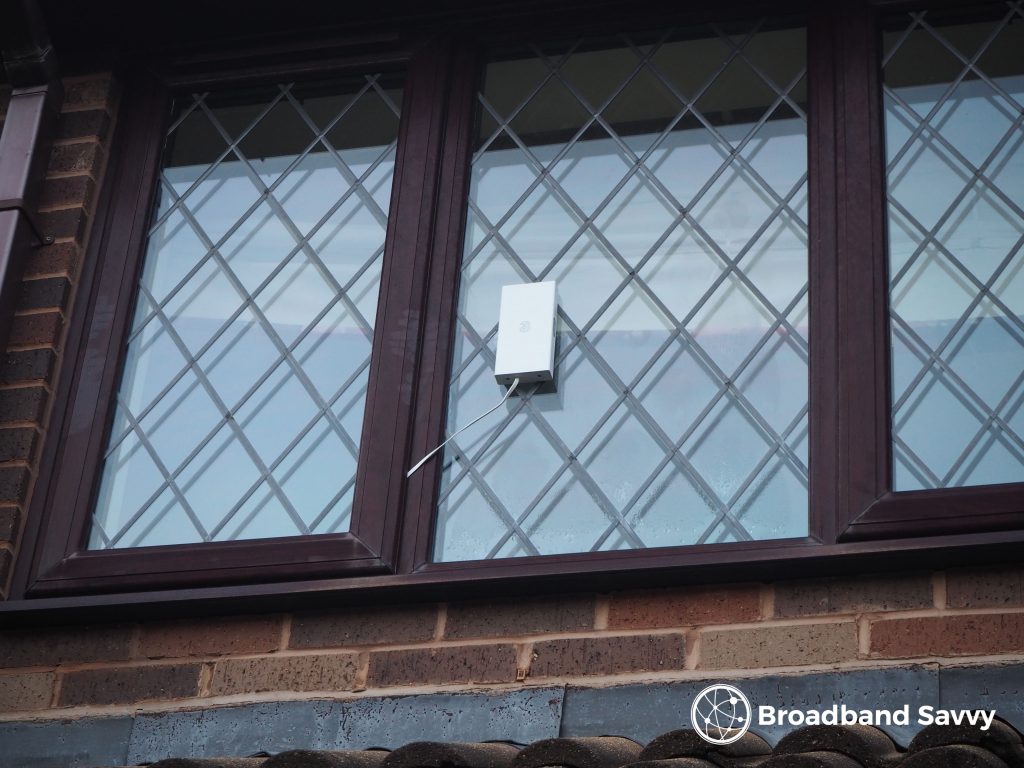
Using these devices, you can normally achieve a 50-100% increase in download speeds compared to using the router on its own, and you should see a decent increase in consistency as well.
Just ensure to be careful when choosing a good spot to mount the antenna. It should be somewhere with strong mobile signal, as measured with our Signal Test Android app.
21. Factory reset your router
This may sound a bit drastic, but in many cases, factory resetting your router can be a good way to get faster speeds.
Similar to restarting the device, resetting your router helps to wipe the slate clean of any issues that could be compromising your signal.
The main thing to keep in mind when doing this is, you will lose any settings you have configured on the device, such as port forwarding rules, guest WiFi networks, and so on.
But if you have not configured many aspects of your router, resetting it shouldn’t cause any problems.
To factory reset your router, there will likely be an option in the admin portal.
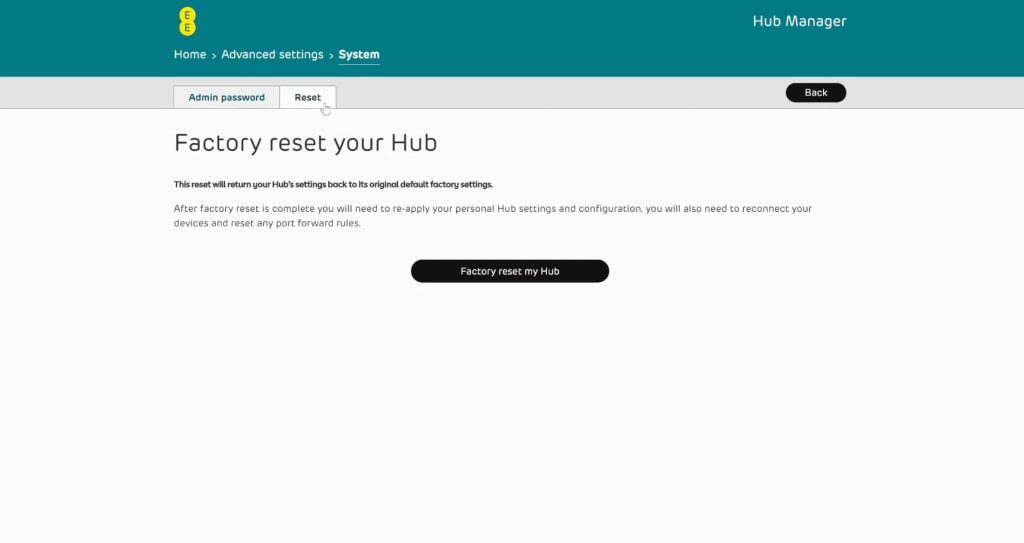
On other devices, you may need to hold down a physical reset button for 10-20 seconds or so while the router is powered on. You may need a paperclip to reach this button, depending on the device.
Then, you’ll be able to log into WiFi using the default details printed on the sticker on the bottom or side of the router. There may also be a setup wizard that you’ll need to complete in the admin portal before you can get online again.
22. Check that you don’t have a usage cap
Fibre broadband plans no longer come with usage limits in the UK.
However, if you are using 4G or 5G internet, your plan may have a monthly usage cap. And when you hit the limit, you might still be able to get online, just with much slower download and upload speeds.
If you’re using a 4G or 5G router or MiFi device, and you notice your speeds suddenly drop off for a few days or so, then go back to normal, check your contract details for a potential usage limit.
23. Check that you aren’t using a VPN
Virtual Private Network (VPN) software is very commonly used among those looking for increased privacy when browsing the web.
The problem is, VPNs route your traffic through a remote server before sending it where it needs to go.
This massively increases the amount of time it takes to send and receive data, making your broadband connection feel much slower than it otherwise would.
If you have a VPN, you will most likely know about this, because these services normally require a paid subscription. However, they are often sold as a 12 or 24 month bundle rather than having a monthly payment, so it is possible you could have an old VPN subscription you haven’t looked at in a while.
On your phone, if you have a VPN active, you will usually see a symbol in the status bar, such as this key seen on Android.
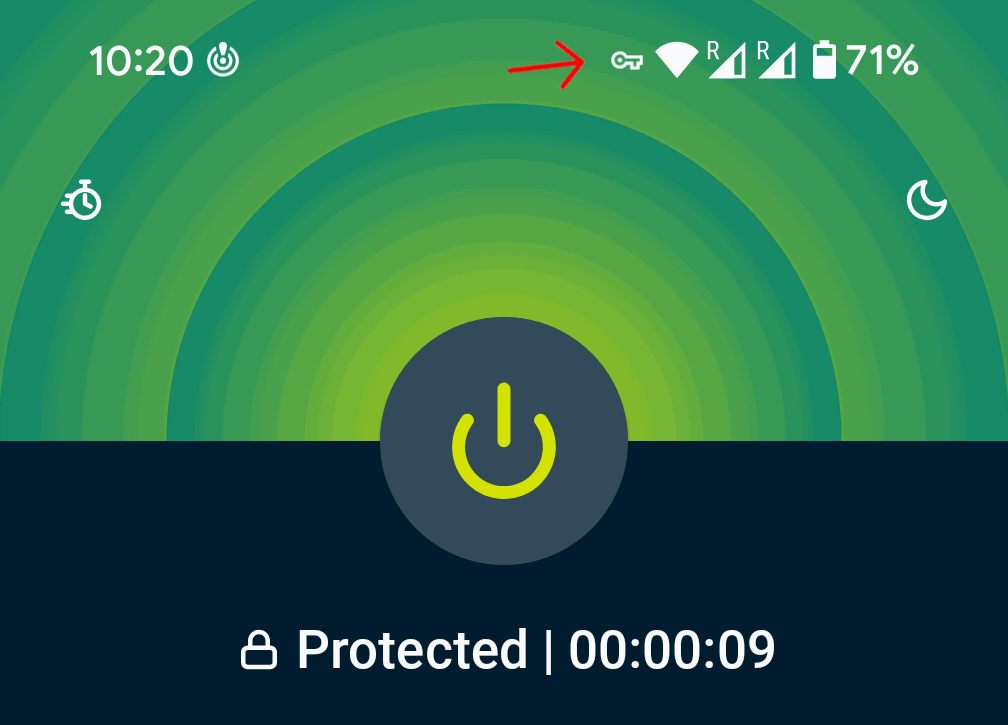
If you see this, look for a VPN app installed on your device, and remove it from your phone.
On your computer, check startup applications to see if a VPN is set to run automatically when you start your device.
- On Windows, open Task Manager, then go to Startup apps, and look for common VPN software such as ExpressVPN, NordVPN, and ProtonVPN.
- On Mac, navigate to System Settings, then look for Login Items & Extensions to find apps that open on startup.
24. Combine multiple internet connections
If your broadband connection is very slow, you might be able to improve things by combining multiple connections – for example, using your phone’s mobile data and fixed-line broadband at the same time.
This is a process known as internet bonding, and is easiest to do using a software application such as Speedify.
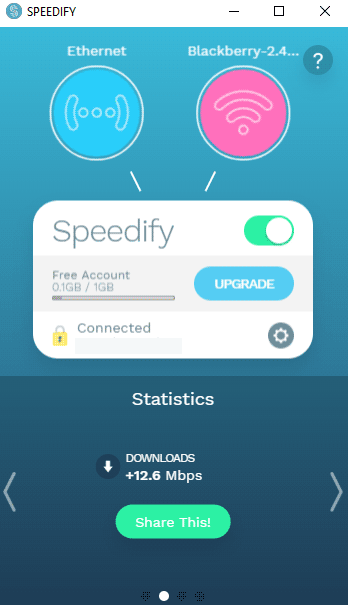
Once installed, you can set up your device to combine multiple WiFi hotspots, Ethernet connections, and satellite internet plans at the same time, giving you increased speed overall.
Most of the time, it’s not feasible to get multiple fixed-line broadband connections at once. However, it is fairly simple to combine a fibre and a 4G internet connection for example to get faster download and upload speeds.
The downside to this method is it can be expensive.
Apart from the cost of having multiple broadband connections, software such as Speedify usually requires paying a monthly licence fee.
25. Contact your broadband provider
If no fixes seem to be working, and your internet is often slow on all devices, you could have a fault with your connection. In this case, it’s worth contacting your broadband provider.
The main thing they will tell you to do is run a speed test on a computer connected to the router with an Ethernet cable.
From your broadband provider’s point of view, most speed-related issues are WiFi or household bandwidth usage problems, which they are not responsible for (unless you have a broadband plan with a WiFi guarantee).
If the speeds to the router are as advertised, you might not get much help from your provider.
But if you’re not getting what you’re paying for, your broadband provider should do a line test to see if there is a fault with your connection. If there is a problem with their infrastructure, they should send an engineer out to fix it.
If your broadband provider can’t fix the problem, we recommend raising a complaint with them, to escalate the issue. This complaint can later be further escalated to a third-party Alternative Dispute Resolution (ADR) scheme if needed, assuming you are located in the UK.
If you have a plan with a minimum speed guarantee, and your performance isn’t as advertised, you may be able to leave the agreement at this point without paying an early termination fee.
26. Search for alternate fibre providers (altnets)
The main group of people struggling with slow broadband in the UK at the moment are those living in rural areas.
In these locations, the main infrastructure provider, Openreach, oftentimes doesn’t find it commercially viable to deploy full fibre broadband.
As a result, you will find that you cannot get fast speeds with major providers that use Openreach infrastructure, such as BT, Sky, and Plusnet.
However, over the last decade or so, large numbers of alternative broadband networks, known as altnets, have sprung up around the UK.
Depending on where you live, it could be that a new company has deployed fibre broadband in your area, meaning you have an alternative to the likes of Openreach or Virgin Media.
To check, we recommend researching altnets that have deployed their network in your part of the UK.
Then, once you find potential companies, such as Gigaclear, B4RN, or Airband, use their website postcode coverage checkers to see if their service is available at your address.
27. Switch to different internet tech
If you cannot get fast fibre broadband at your address, there are now other types of internet technology that are worth looking at.
The first is 4G or 5G internet.
You still get a WiFi router using this tech, but it takes a SIM card rather than plugging into a broadband socket on your wall. Then, the router connects to the mobile broadband network to get you online.
Mobile broadband usually offers speeds of at least 30 Mbps, or potentially much faster if you can get 5G instead of just 4G signal.
And in very remote areas, you can use an external antenna to pick up stronger signal from the nearest mobile mast.
The second type of alternative internet technology worth looking at is satellite internet.
This is more expensive than 4G or 5G, and is less consistent, as it can be affected by weather. It is also usually more restrictive when it comes to data limits.
However, the benefit of satellite broadband is it can offer good speeds in almost any part of the UK, as long as you have a clear line of sight to the horizon.
Final advice
Hopefully, using one or more of these tips, you’ve been able to increase your internet speed at least a little bit.
The main thing to do is find out, at a broad level, why your connection is slow.
Do you have a WiFi issue, or is everything slowing down at certain times of day? Or is it just one device where browsing feels sluggish?
Once you have this worked out, it becomes much easier to decide on where to start with your troubleshooting.
But if you still need help, get in contact with us, and we can help give you some more specific advice on improving your broadband speeds.
Related resources
How To Improve WiFi Signal & Speeds – 9 Methods
Discover how to get better speeds, signal, and consistency from your home WiFi connection.
How To Get Faster Speeds With 4G/5G Broadband
Learn how to get faster, more consistent download and upload speeds when using 4G or 5G broadband at home.
5G Broadband vs Fibre Internet | What’s The Difference?
Learn about the difference between 5G and fibre broadband. Discover whether you should choose fibre or 5G internet for your household.

5G Broadband vs Starlink Satellite Internet | Key Differences
Learn about the differences between 5G broadband and Starlink internet, when it comes to speeds, latency, cost, and more.

Tom is the founder of Broadband Savvy. He has nearly 10 years’ experience writing broadband tutorials, reviewing routers and internet service providers, and explaining broadband-related concepts. Tom is experienced as a writer, has appeared on national radio and in national newspapers, and also produces videos for the Broadband Savvy YouTube channel.
He currently specialises in writing content for Broadband Savvy designed to help people understand broadband jargon and terminology, increase their download and upload speeds, and improve their Wi-Fi connectivity. Tom also occasionally contributes to buyer’s guides and review articles on Broadband Savvy, utilising his knowledge of the broadband market in the UK.
When he’s not writing about broadband, you’ll find him hiking somewhere or playing on his Nintendo Switch.