
Contents
How to measure signal strength
The main thing that affects your download and upload speeds when using 4G or 5G internet is the signal strength received by the router you’re using.
Even just moving the router slightly can make a big difference to the speeds you end up seeing.
Therefore, it’s a good idea to measure your mobile signal to see where in your house you get the strongest signal, and help you get better performance.
If you have an Android phone, you can do this with our Signal Test mobile app.
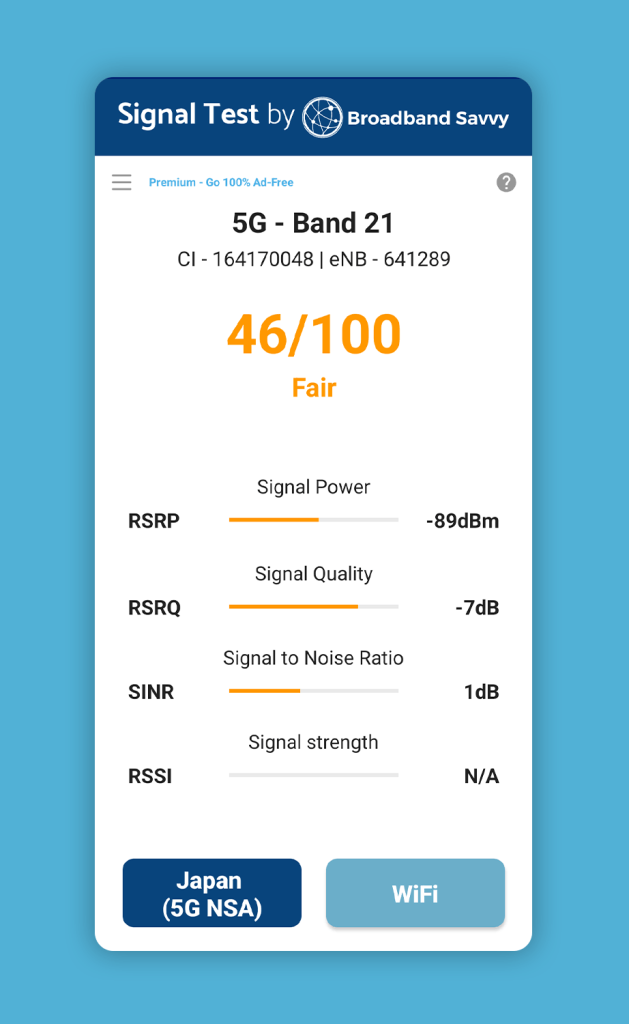
After installing the app, put the SIM card you use for home broadband into your phone, and you’ll see your mobile signal graded on a scale from 0 to 100.
Walk around the house, and the app will update in real time, showing you where your mobile signal is weak and where it is strong.
You can use this information to put your router in the best possible spot, as we’ve explained in the next section.
How to improve wireless broadband speeds
1. Reposition your router
To get the fastest possible 4G or 5G home broadband, you need to place the router somewhere with strong mobile signal.
Normally, the best place is a windowsill on about a second storey. However, it’s important to figure out the best side of the house to put the router, closest to the nearest mobile mast. You generally want the router to be as close to the mast as possible.
You can do this by trial and error, setting up the router in different spots, and running speed tests.
However, if you have an Android phone, the best way to do this is to use our Signal Test app as we described above, while also looking at cellmapper.net.
When you open the Signal Test app, you’ll see an eNB value at the top of the screen.
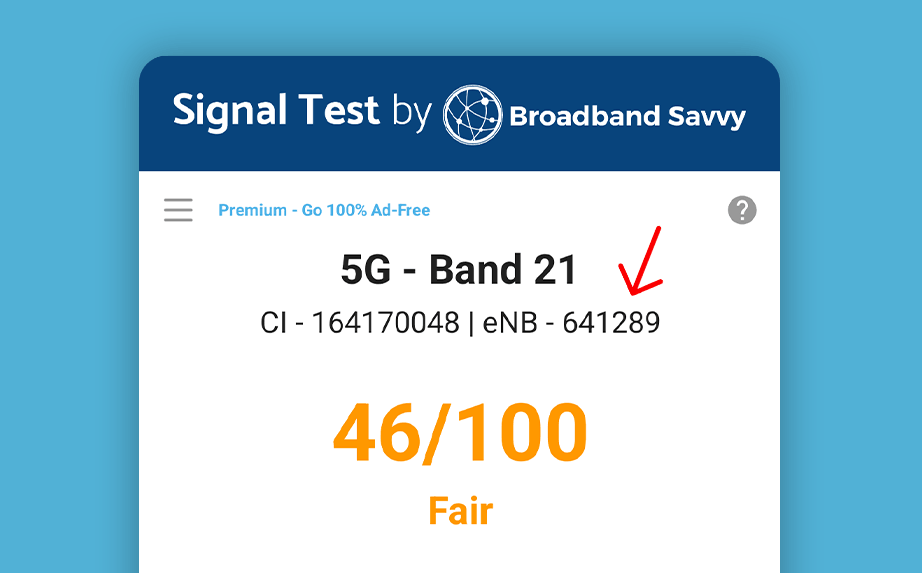
This number represents the mobile mast you are connected to.
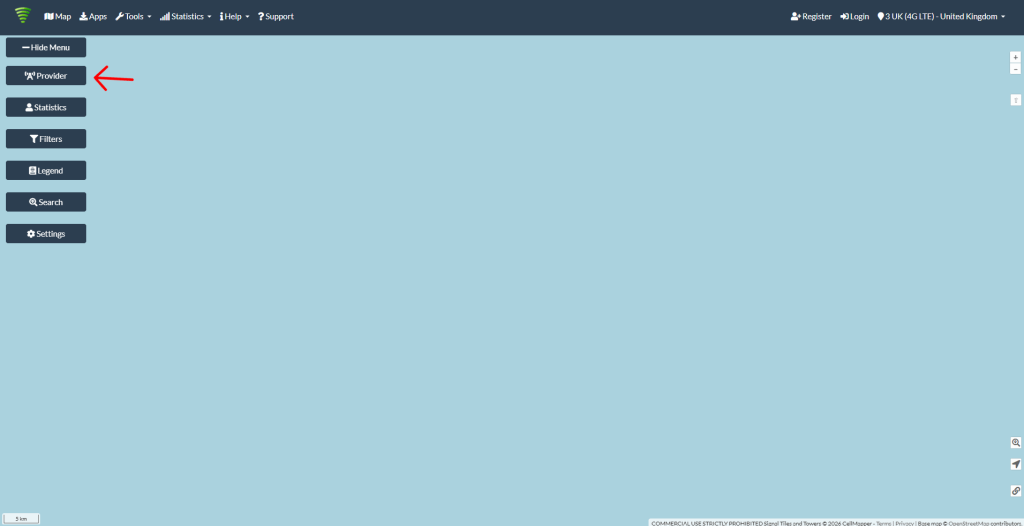
If you go to cellmapper.net, click Provider on the left:
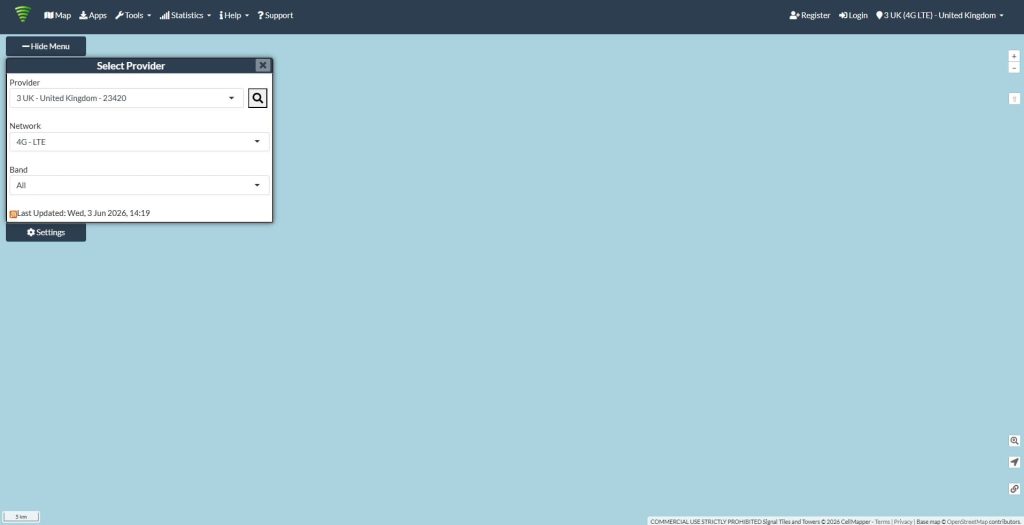
Then choose your mobile broadband provider (pick 4G LTE even if you are using 5G):
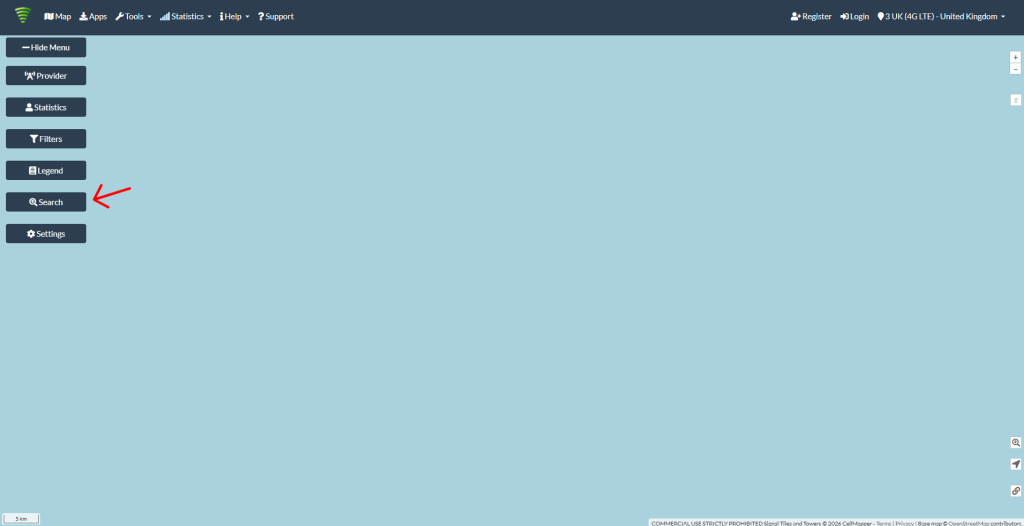
Now click Search on the left:
And type in the eNB value you see in the app:
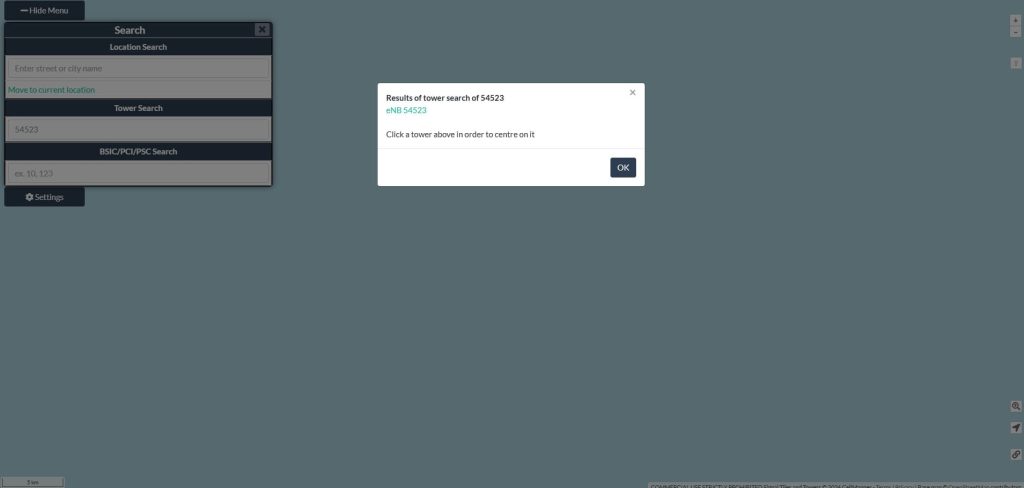
Click this number, and you will see a map of your area centred on the exact location of the mast you are connected to:
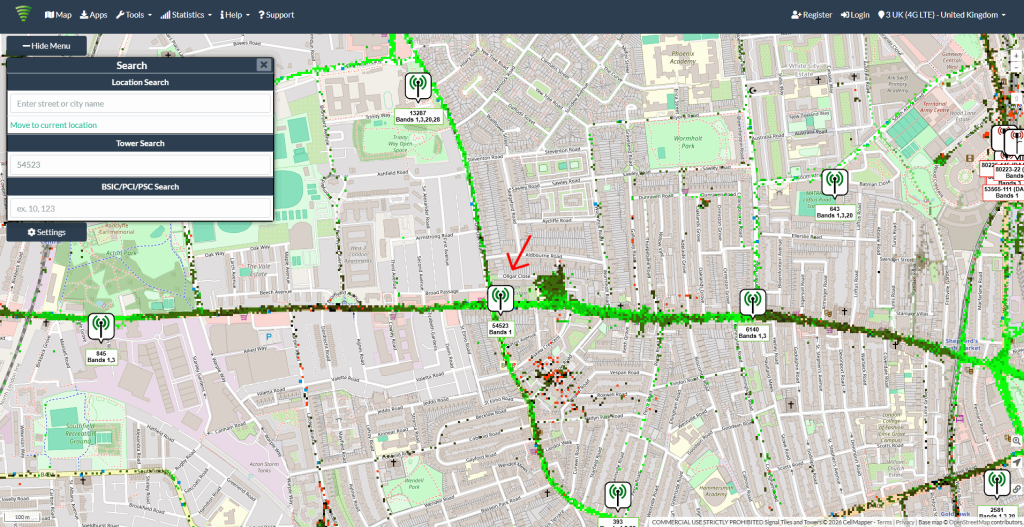
Using this information, you can get a better idea of which side of the house it’s best to put your router on, in order to get the best possible signal.
Walk around the side of the house closest to the mast with the Signal Test app open, and find a few good locations to put the router with strong mobile signal.
Then, run some speed tests to compare router performance in each spot, moving the router from place to place.
If you can’t use our app to find the eNB value, you can also select your provider on cellmapper.net to show its masts, manually zoom in the map on your address, and look for nearby towers.
You can sometimes also view the eNB value in your router’s settings, depending on the model, to help identify the exact mast it is using.
2. Use an external antenna
By default, your router will use its internal antennas to pick up 4G or 5G signal.
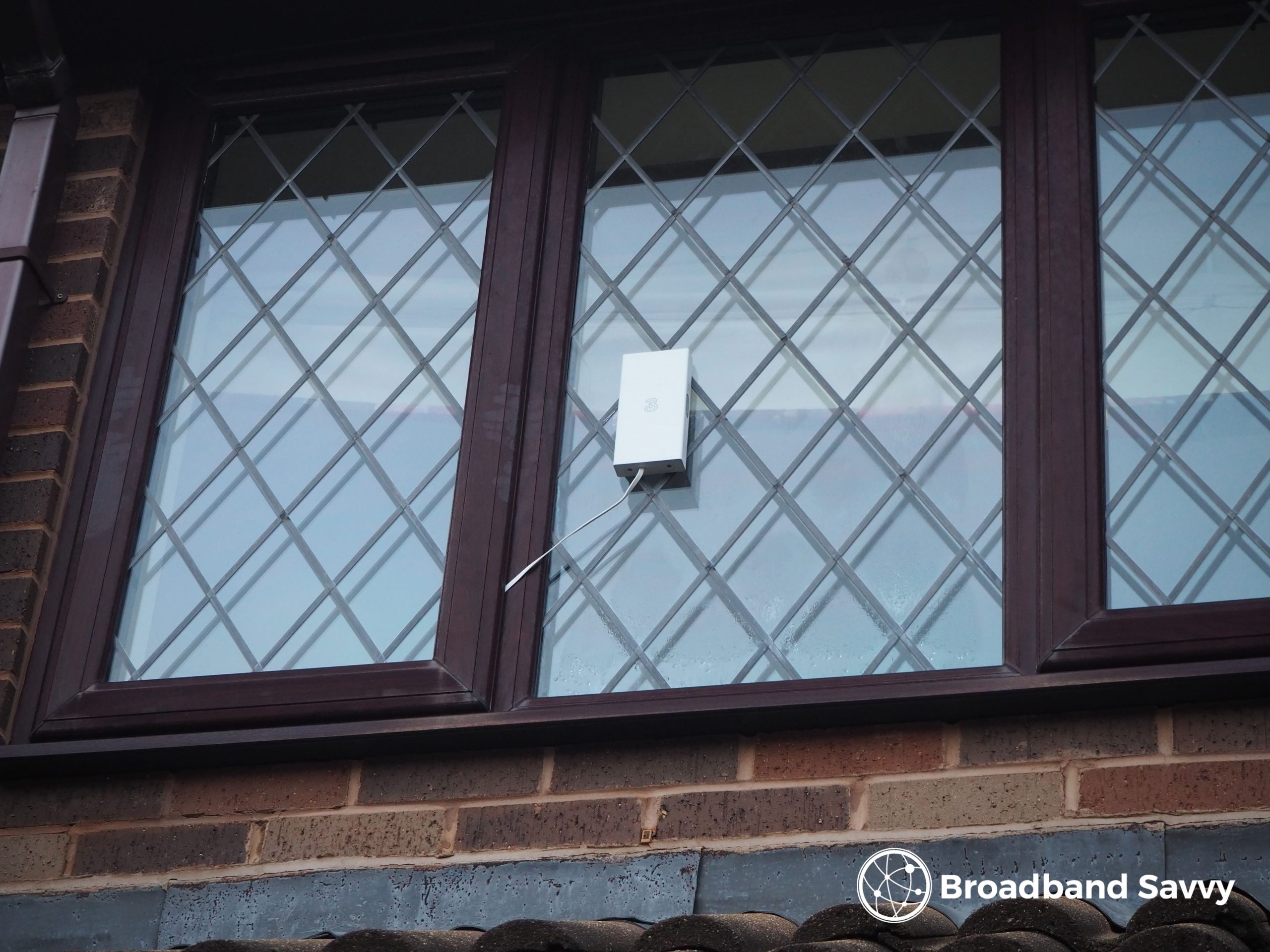
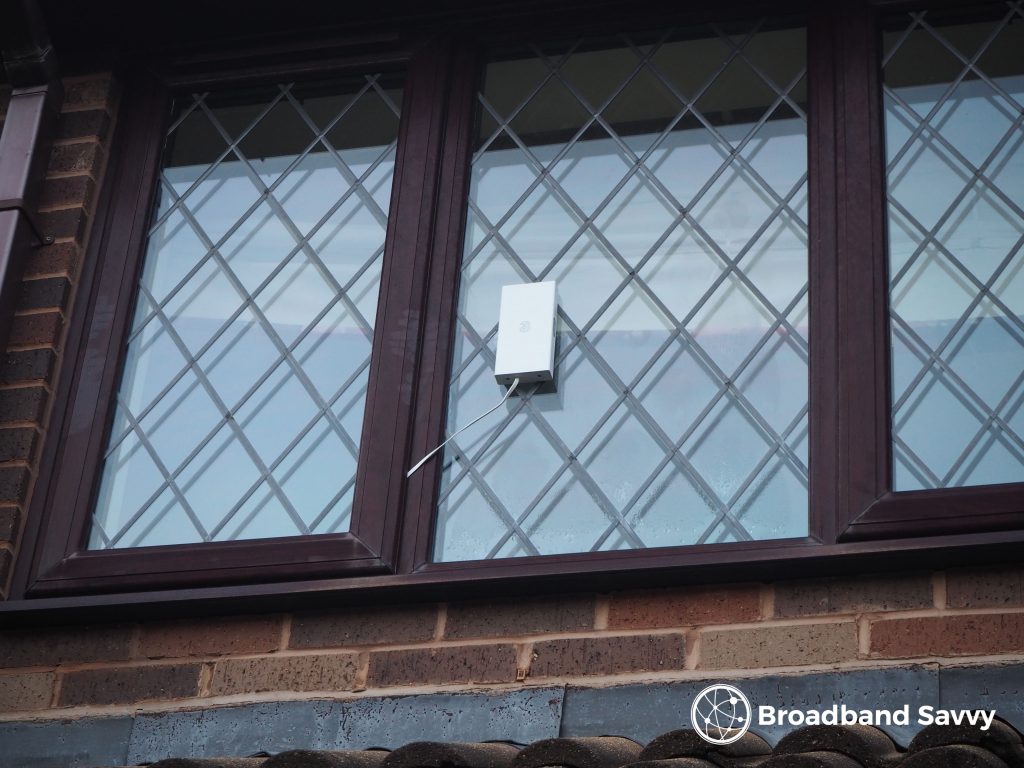
But some routers are compatible with external antennas you mount on the outside of your property, which can help you get much faster speeds.
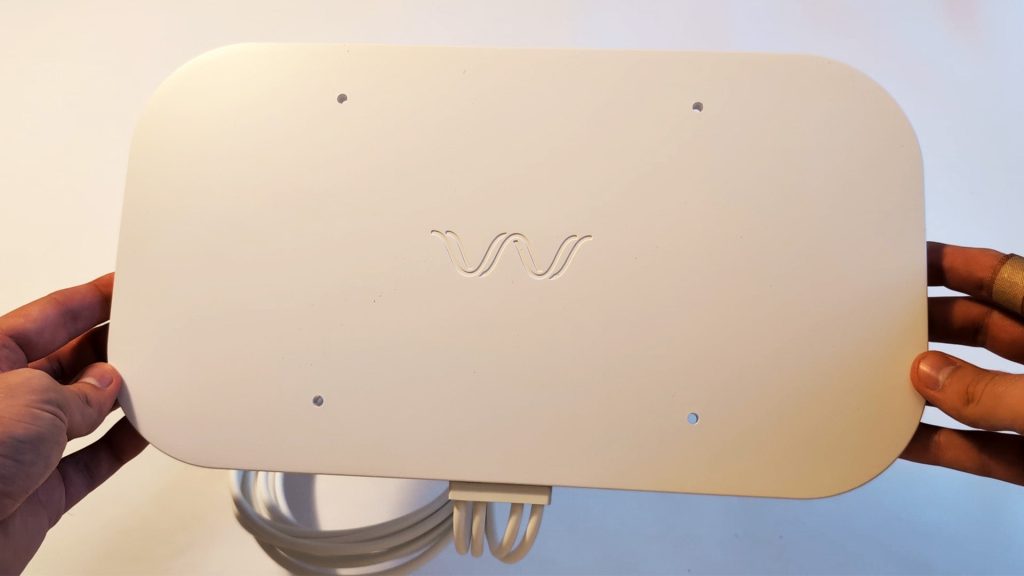
For example, using the Waveform Quadmini (pictured above), our 5G internet speeds went from this:
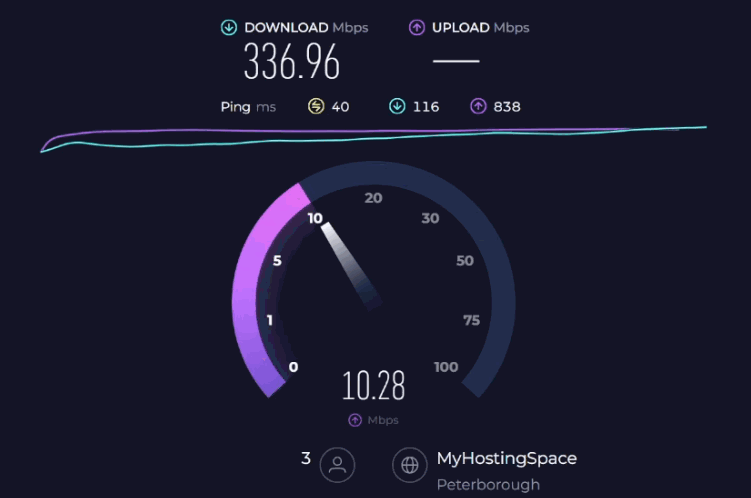
To this:
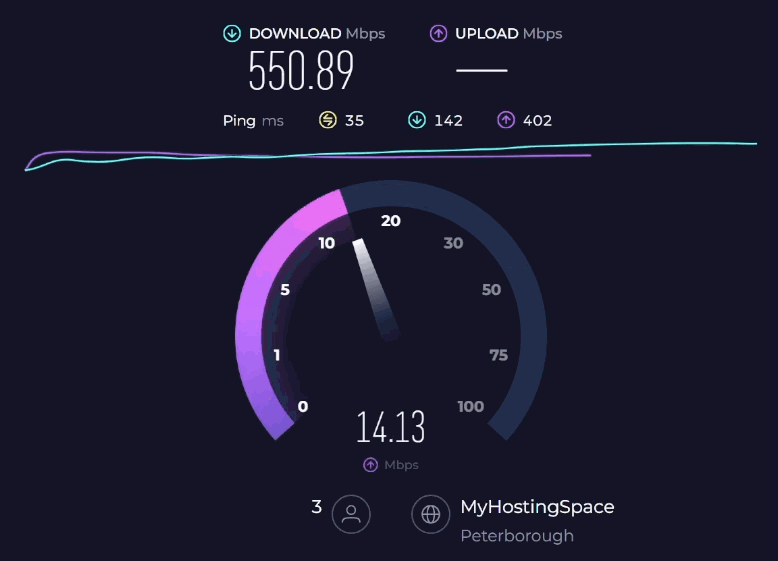
Antennas are particularly helpful when trying to use 4G internet in a rural location a long way away from the nearest mast. But they also provide a decent speed boost when using 5G internet as well.
These devices often come with suction cups or stickers you can use to attach them to a window, or you can mount them on brick surfaces, a pole, or wood for a more permanent solution.
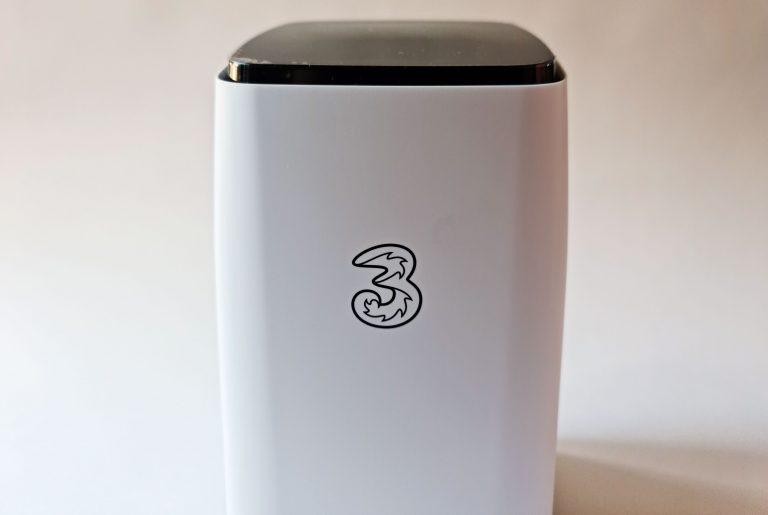
The best all-in-one router, SIM and antenna deal at the moment in our opinion is the Three 5G Outdoor Hub pictured below, if you can get it at your address.
These antennas are weatherproof, and have a cable that you feed back indoors to supply signal to your router.
Just like when using a 4G or 5G router on its own, it’s crucial that the antenna is in the right position with the strongest possible mobile signal, in order for it to provide the most benefit.
There are two main types of external antennas: 2x2 MIMO and 4x4 MIMO.
The right one to buy mostly depends on the type of router you have. If it has two external antenna ports, you want 2x2 MIMO, and if it has four ports, you want 4x4 MIMO.
Most of the time, external antennas are plug-and-play, meaning you don’t need to change any settings on your router before going live.
However, some 4G and 5G routers do require that you log into the admin settings and specify that you’re using an external antenna, once you set one up.
3. Switch mobile networks
Different mobile networks can vary widely in performance. As a result, it’s sometimes possible to get much faster home broadband speeds by switching to a different mobile carrier.
You can look at cellmapper.net to get an idea of which networks have masts in your area. At the moment, in the UK, it’s EE, O2, Vodafone, and Three that you can choose from, but Vodafone and Three are currently merging their operations and becoming a single network.
In general:
- EE has the best 4G coverage and speeds, and really good 5G as well, but their plans are expensive and often come with speed limits.
- O2 has great 4G but average 5G.
- Three has the fastest 5G speeds and good 4G.
- Vodafone has fast 4G and 5G but sometimes has speed limits on their SIMs.
To find the best network at your address, you can use their coverage maps to get a rough idea of their indoor 4G and 5G availability:
However, in terms of actual performance, the only way to find the best network for you is to do real-world speed tests.
You might like to borrow SIMs on different networks from family members, or buy cheap PAYG SIMs to do these speed tests at your address.
4. Restart your router
This is a very simple solution, but it can be very effective, and is definitely worth trying.
When you restart a 4G/5G router, it will reset the mobile bands it is using. It will resync its connection settings given its current position, and the current performance of the nearest mobile mast.
As a result, unplugging your router and plugging it back in again can have a significant effect on the speeds you receive using wireless internet.
5. Ensure you’re not hitting a data limit
Unlike fibre broadband deals, mobile broadband plans sometimes come with monthly data limits, especially if you’re using a dongle or a mobile WiFi device.
When you hit your limit for the month, sometimes your provider will just slow you down, rather than cutting off your connection entirely.
If this is occurring, you will most likely notice your speeds drop off a cliff in the last week or so of your billing period, before becoming fine again when the limit resets.
6. Change APN settings
This is a bit of a more advanced tactic, but is definitely worth looking into if you’re still struggling with slow speeds.
Access Point Name (APN) settings define how your 4G or 5G router connects to the provider’s mobile network.
They are set up automatically, but sometimes, different mobile networks have different sets of APN settings you can use, which provide different levels of performance.
With Three for example, the default APN is usually “three.co.uk”. But you can sometimes change to “3internet” to get better speeds.
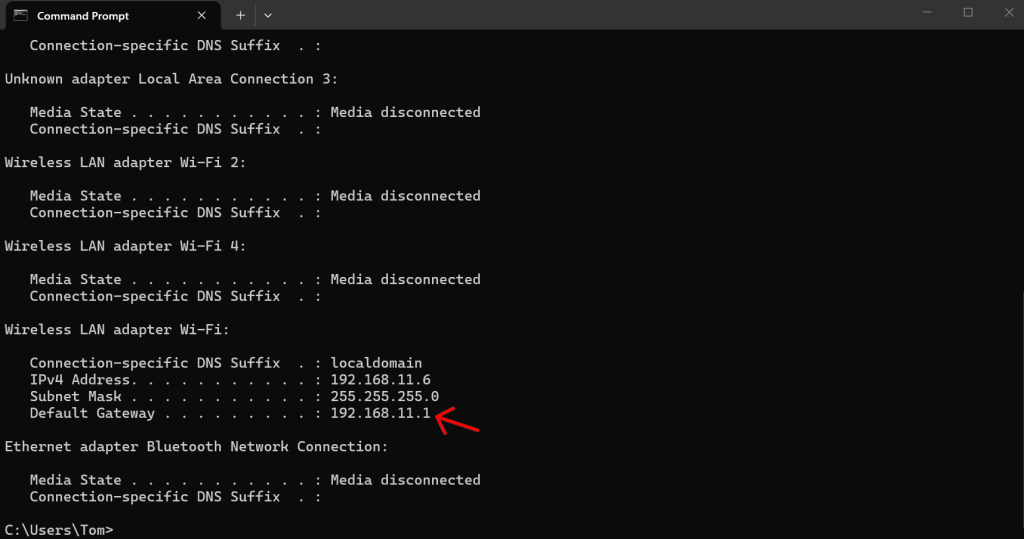
To change APN, you need to access your router’s admin portal by typing your default gateway IP address into your web browser, and logging in with the admin details printed on the router.
When connected to the router via WiFi or Ethernet, you can find the default gateway on Windows by opening the command prompt, typing in “ipconfig”, and pressing Enter.
On Mac, go to System Settings > Network, and choose your active connection. Click Details > TCP/IP, and look for the IP address shown.
Once you’re logged into your router, look for APN settings, which are usually in the internet settings section.
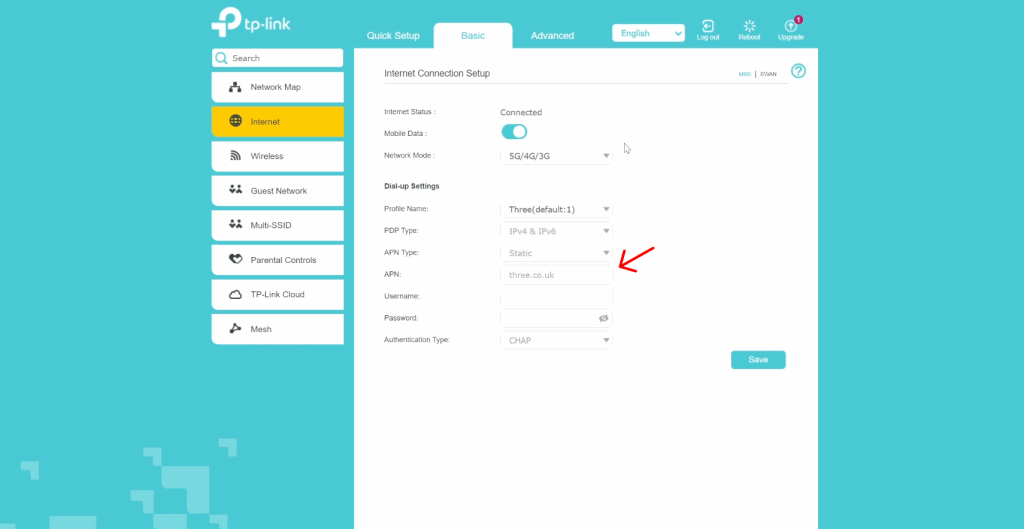
In most cases, you just need to change the “APN” value to the one-line APN specified by your mobile carrier.
7. Improve your WiFi signal
It might actually be that your speed issue isn’t related to the 4G or 5G broadband connection itself.
Instead, it could be that you have something wrong with your WiFi that’s slowing you down.
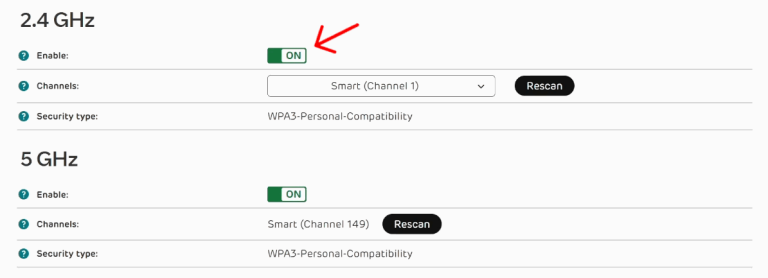
We have a dedicated guide to improving your WiFi signal, if you think this might be what your problem is.
But most of the time, when using wireless home broadband, WiFi issues are related to distance from the access point.
As we just discussed, to get the best mobile signal, you usually need to have the router set up somewhere on the edge of the property, which could be quite a distance away from the devices that you want to get online with.
The best way to solve this is often to use a mesh WiFi kit with your mobile broadband router, giving you multiple access points around the house that your devices can use to get WiFi signal, rather than just relying on a single wireless access point potentially quite a long way away.
Related resources
How To Improve WiFi Signal & Speeds – 9 Methods
Discover how to get better speeds, signal, and consistency from your home WiFi connection.
5G Broadband vs Fibre Internet | What’s The Difference?
Learn about the difference between 5G and fibre broadband. Discover whether you should choose fibre or 5G internet for your household.
5G Broadband vs Starlink Satellite Internet | Key Differences
Learn about the differences between 5G broadband and Starlink internet, when it comes to speeds, latency, cost, and more.

What is MiFi? 4G/5G Mobile WiFi Devices Explained
Learn more about MiFi devices and how they work. Discover if a mobile WiFi router is the right way for you to get online.

Tom is the founder of Broadband Savvy. He has nearly 10 years’ experience writing broadband tutorials, reviewing routers and internet service providers, and explaining broadband-related concepts. Tom is experienced as a writer, has appeared on national radio and in national newspapers, and also produces videos for the Broadband Savvy YouTube channel.
He currently specialises in writing content for Broadband Savvy designed to help people understand broadband jargon and terminology, increase their download and upload speeds, and improve their Wi-Fi connectivity. Tom also occasionally contributes to buyer’s guides and review articles on Broadband Savvy, utilising his knowledge of the broadband market in the UK.
When he’s not writing about broadband, you’ll find him hiking somewhere or playing on his Nintendo Switch.