
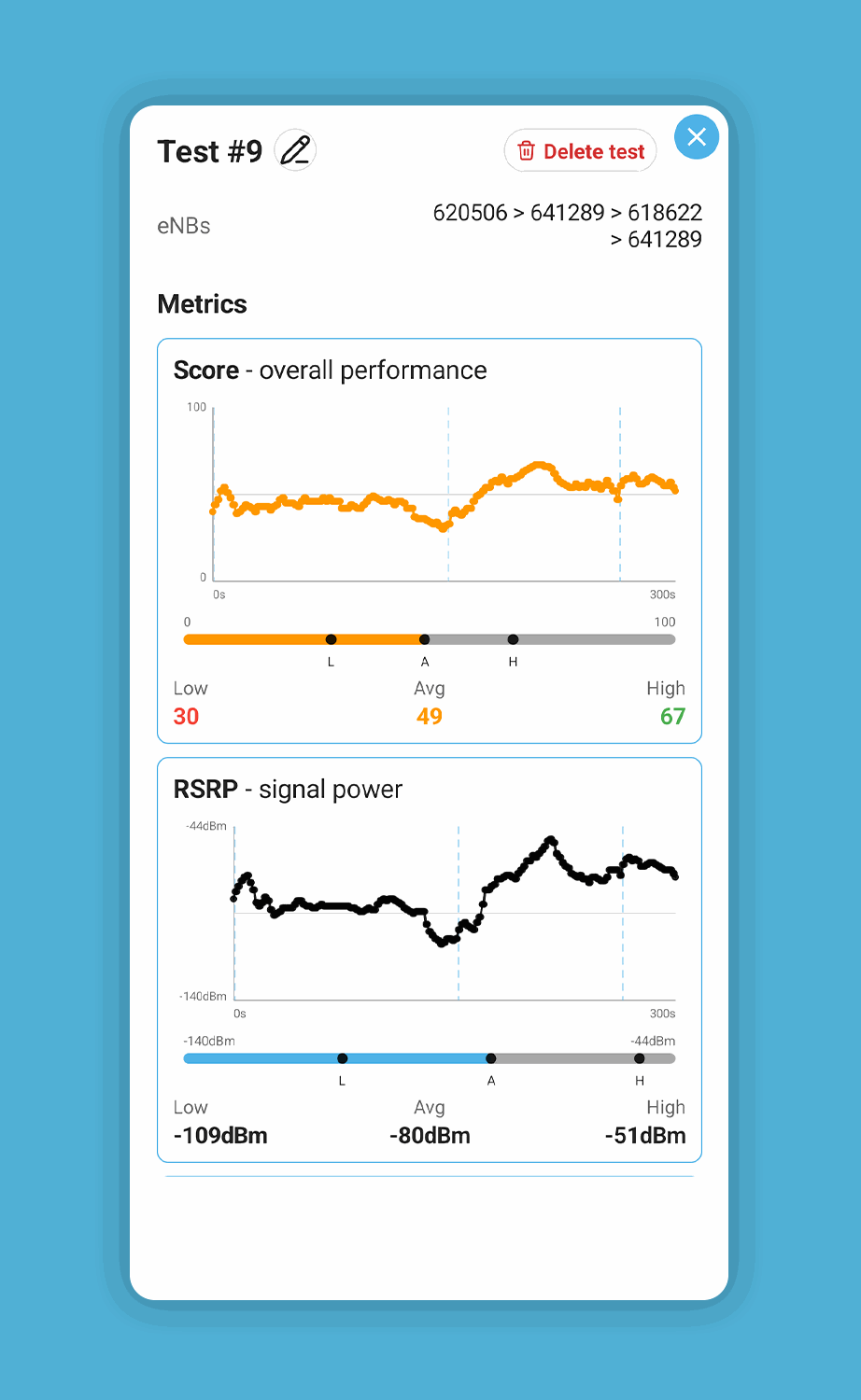
Broadband Savvy has a free signal testing app for your mobile phone, which helps you improve your broadband speeds.
The app has two main functions:
- Test the signal strength of your 4G or 5G connection to find the best place to put a 4G or 5G router or antenna (or mobile hotspot device), allowing you to get faster speeds using wireless broadband.
- Test the signal strength of your WiFi connection as you move around the house, to identify WiFi dead spots or areas with poor signal.
Contents
Download
Download our Signal Test app on the Google Play Store.
Note that the app is currently only available for Android devices, because Apple unfortunately does not make it possible to perform signal tests on an iPhone at the moment.
Getting started
Step #1: install the app, and accept the necessary permissions
The app needs location and mobile permissions in order to access signal data from your phone.
Click next on the first screen, then accept the two permission types to begin monitoring your signal.
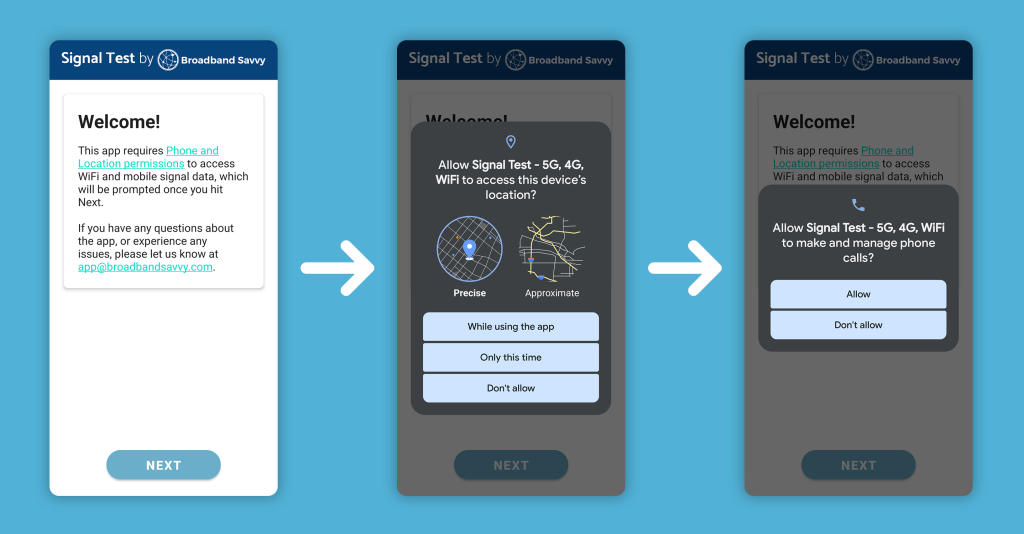
The app does not make phone calls, it only accesses mobile data metrics in order to measure signal strength.
Step #2: check your 4G/5G signal
Once the permissions have been granted, you’ll immediately see a live monitor of your 4G or 5G signal strength.
The app displays different metrics about your signal quality, signal power, and signal interference, which are used to calculate an overall score out of 100.
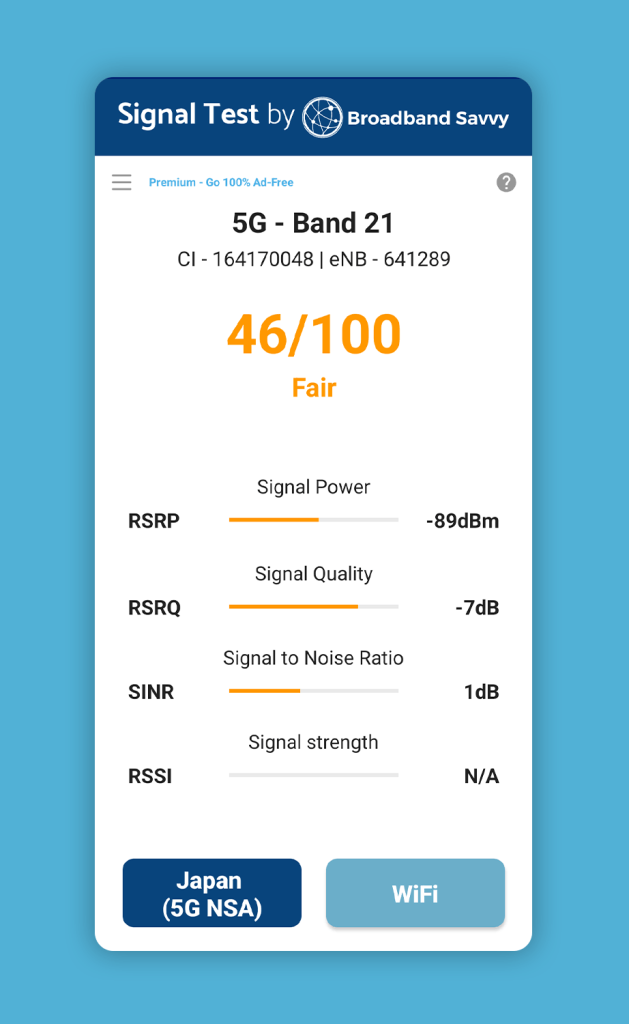
You can also see which mobile mast your phone is currently connected to using the “eNB” value at the top of the screen. In most cases, each mast has a unique eNB value, so when this number changes, it means you have connected to a new mobile tower.
If you would like to measure 4G signal but the app is monitoring 5G, turn off 5G service in the network settings on your phone, and the app will begin to show data for 4G instead.
Step #3: check your WiFi signal
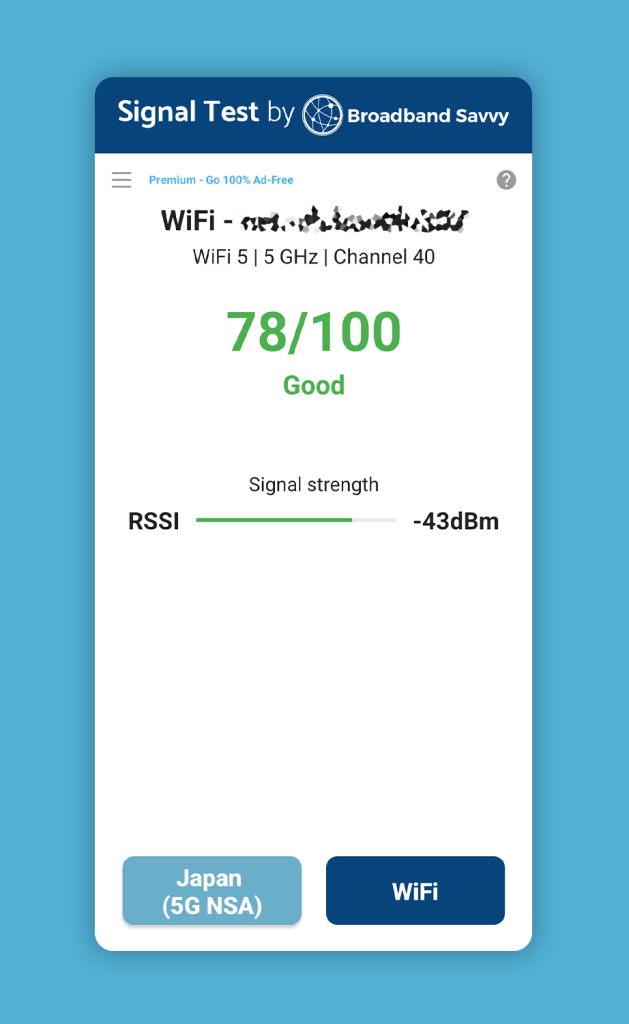
If you are connected to WiFi, tap the button on the bottom-right of the screen to begin monitoring your WiFi signal strength.
This is also shown as a score from 0 to 100, based on the signal strength measured between your phone and the WiFi access point you are connected to.
Step #4: record tests (optional)
As well as monitoring signal strength in real time, you can also choose to record a test to store signal strength data over a period of time for later review.
Navigate to the page for the type of signal you would like to monitor (mobile or WiFi), then open the menu on the left and tap “Record test”.
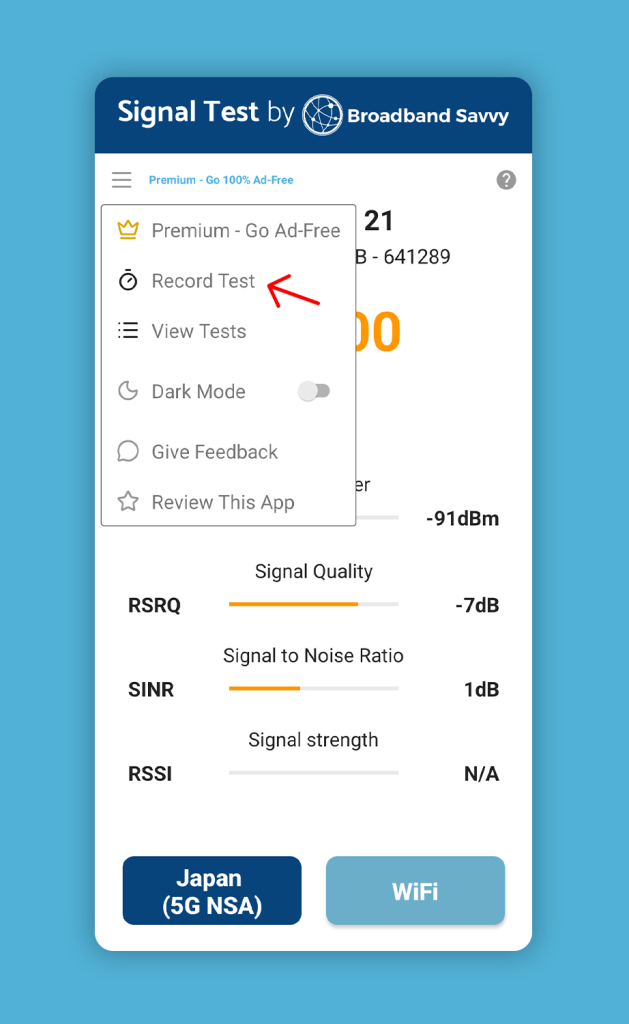
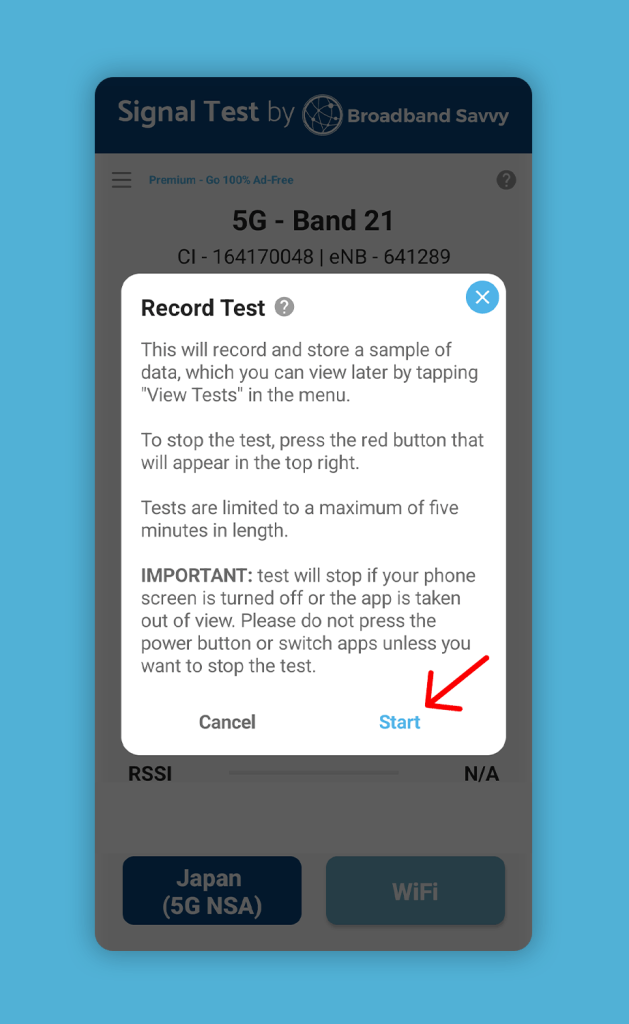
Tap “Start”, and the test will begin.
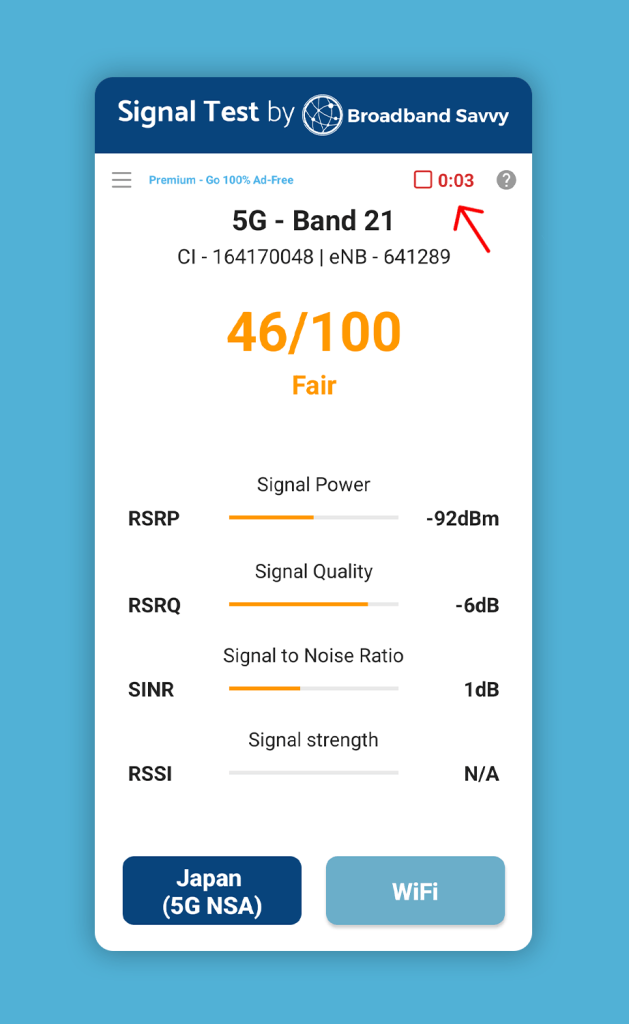
Progress is shown with a red square symbol and a timer in the top right corner of the screen. Tap this red square symbol to stop the test.
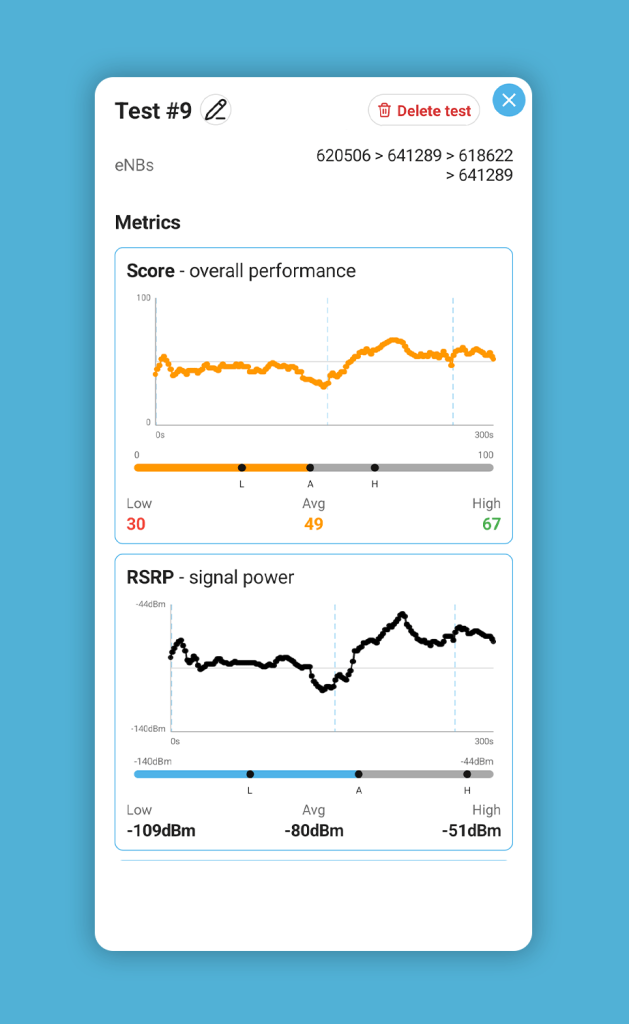
You can then view the test results to see how your signal performed over the measurement period. The blue horizontal lines show when your phone switched mobile towers, when taking a mobile signal test.
Note that the app must remain open and in view for the test to be able to gather accurate data. If the app is closed or taken out of view, the test will automatically stop.
Using the app to improve 4G/5G broadband speeds
You can use the Signal Test app to find the place in your house with the strongest 4G or 5G signal.
By positioning your router (or external antenna) in this spot, you can get better speeds and more consistent performance from your wireless broadband connection.
Steps
Put the SIM you plan on using for home broadband in your phone, then walk around the house, and look for the place with the highest signal score. You may choose to record a test while you do this to refer back to later.
Then, reposition your 4G or 5G router in this spot, and run speed tests to see how your download and uploads are performing.
Test a few different areas with strong signal reported in the app to find the place that offers the best download and upload speeds for your router.
Using the app to improve WiFi signal
The Signal Test app can help to identify WiFi dead spots, allowing you to improve WiFi signal and coverage at home.
Steps
Using the WiFi signal utility, walk around your house, and look for areas with weak WiFi signal. Perform speed tests in these areas to check how consistent the connection is.
In these areas, you may like to consider using WiFi extenders or a mesh WiFi kit to get better signal.
You may like to use the test recording function of the app to record exactly how strong your WiFi signal is in each room of the house, to help you more easily track the weak spots that exist.
Related resources

What Internet Speed Do I Need? UK Bandwidth Calculator
Find out how much bandwidth you need for your household with our broadband internet speed needs calculator.

Broadband Mid-Contract Price Rise Calculator – Total Contract Cost
Find out the total cost of a given broadband deal you are considering, accounting for mid-contract price rises.

Broadband Early Termination Fee Calculator
Discover what you would pay to leave your broadband contract early with most of the major providers in the UK.

Tyler is the co-founder of Broadband Savvy. He has been helping people improve their broadband connectivity since 2018 by writing about fibre broadband and mobile broadband providers, as well as creating tutorials to help people improve their broadband speeds and Wi-Fi signal.
Tyler is responsible for the majority of buyer’s guides and broadband reviews published on Broadband Savvy. He has a wealth of experience testing and reviewing different broadband tariffs, including fibre internet plans, as well as 4G and 5G broadband deals. He is responsible for testing and evaluating Wi-Fi routers, performing speed and latency tests, and comparing the value for money of different broadband providers on the market in the UK.
Before co-founding Broadband Savvy, Tyler had a long history of tinkering with computers. He built his first PC at the age of 12, and since then, he’s become obsessed with all things networking and internet-related. He’s a massive gamer, loves Rocket League, and also plays Sunday League football.