

Contents
1. Use a 4G MiFi device
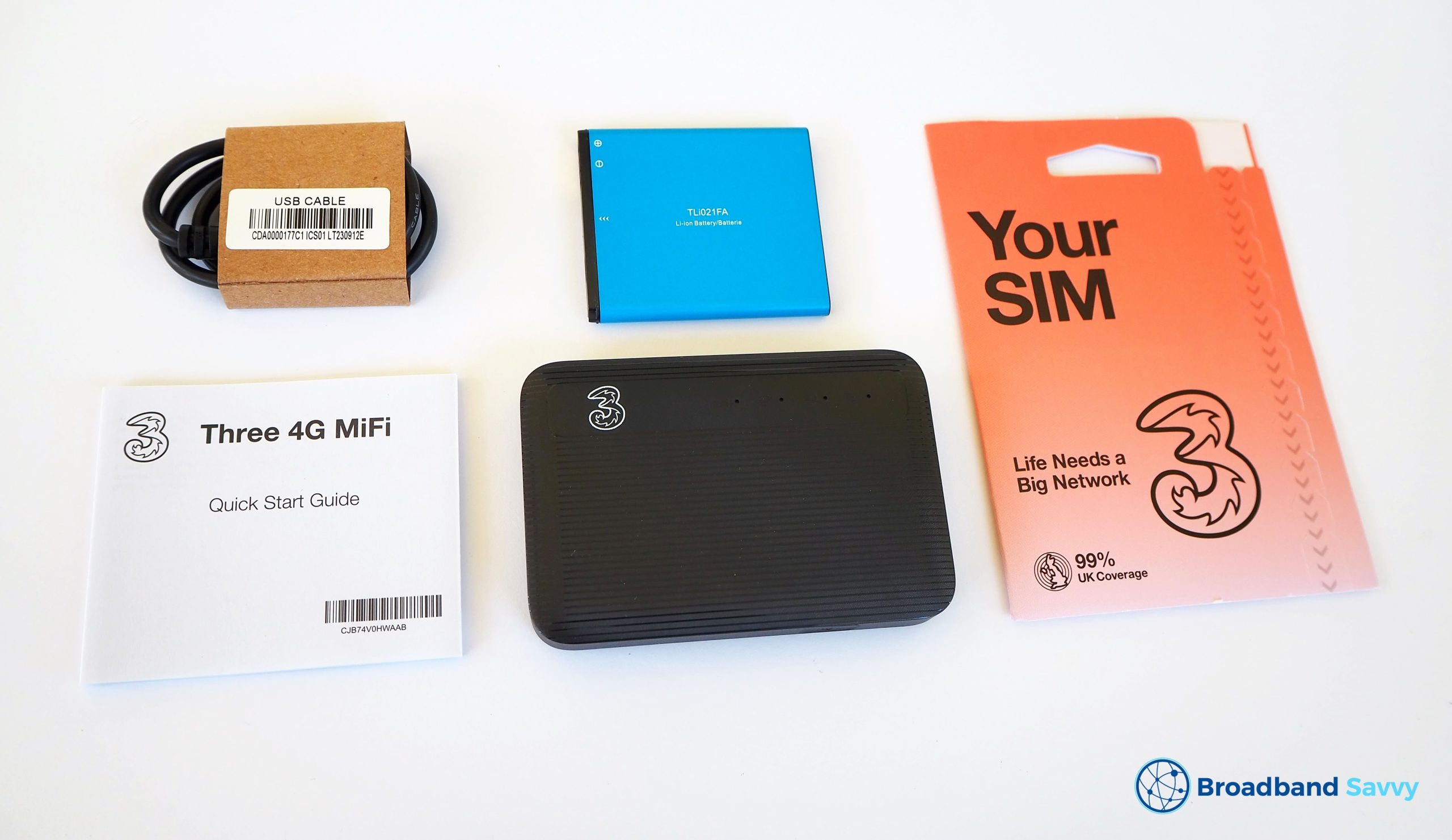
Mobile Wi-Fi (MiFi) devices are small gadgets that connect to the mobile network to establish an internet connection, then broadcast a WiFi network to help you get online.
Many of the major mobile networks in the UK sell MiFi devices bundled with a SIM plan and everything else you need to get connected.
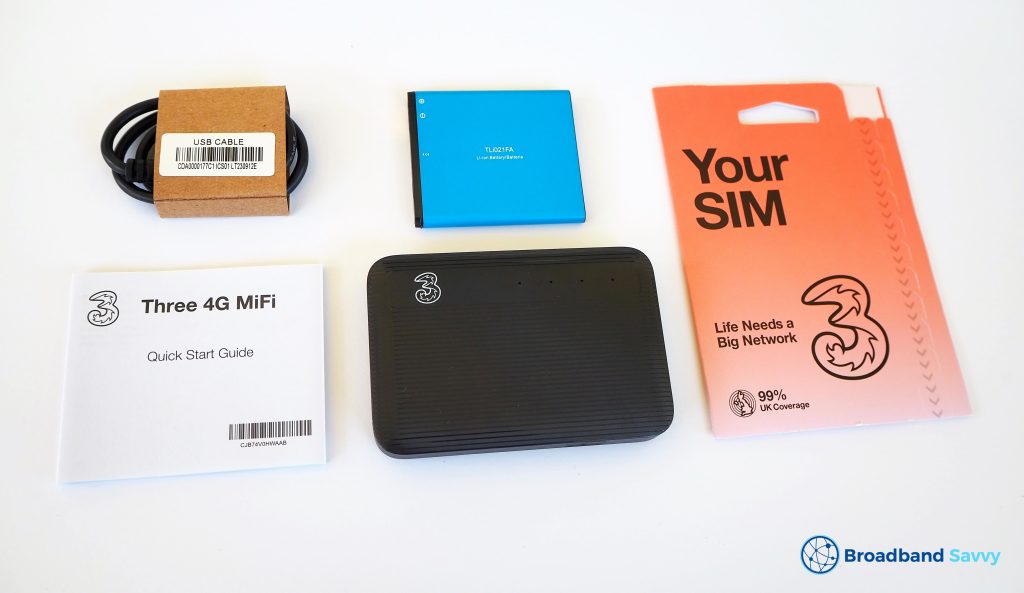
To power the device, these gadgets come with a battery just like your phone does, but you can also choose to keep them plugged in and charging all the time if you’d prefer.
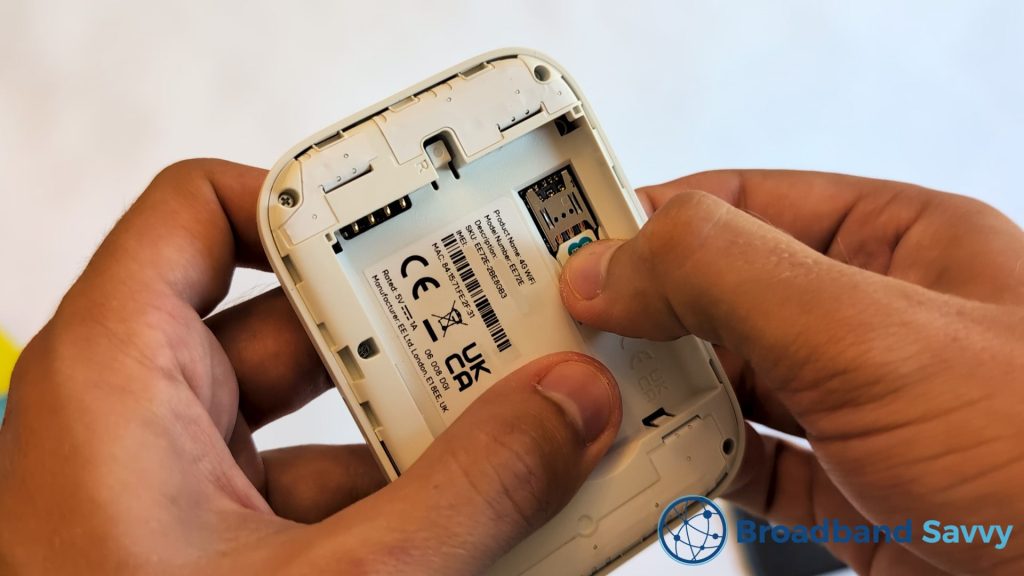
When the package arrives in the mail, you’ll first need to insert the SIM card into the device. This may involve unclipping the back cover.
There is usually a slot you push the SIM card into, or sometimes a holder with a flap over it, where you have to secure the SIM in position.
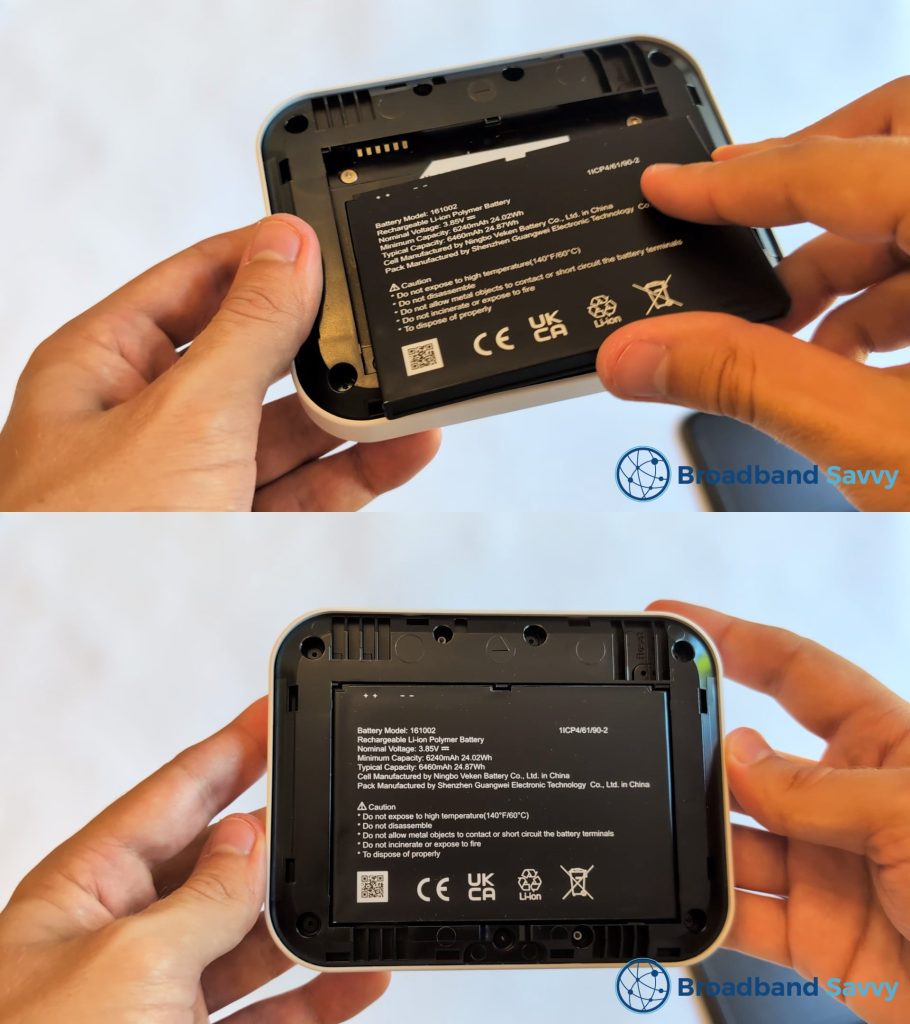
Then, you’ll need to put the battery into its slot, unless it comes pre-installed in the device.
Finally, after putting the back cover back on, hold down the power button on the MiFi device to turn it on, and it will connect to 4G or 5G, and establish a WiFi hotspot.
You can connect to this hotspot using the login details included in the box, or printed on a sticker inside the device.
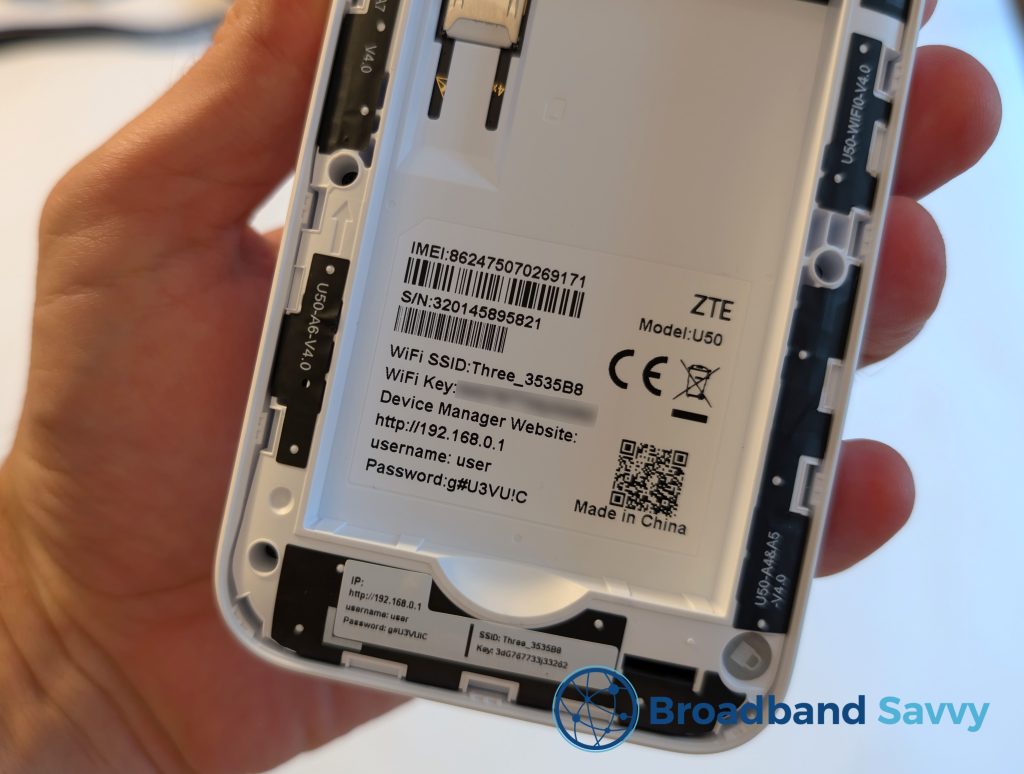
Once you are connected to WiFi, all you need to do is power on the MiFi device to reconnect to the internet, making these gadgets quite easy to use on a day-to-day basis.
The only real downside to using a MiFi device is the slight hassle of setting it up. But they are fairly easy to get started with in most cases.
If you’re looking for a cheap MiFi provider with a device that works well, we recommend looking at Three’s 4G mobile broadband deals.
2. Hotspot from your phone
If you have a smartphone and a data plan, you might like to get online using your handset’s hotspot.
These days, phone tariffs usually come with a monthly mobile data allowance, and nearly all smartphones have the ability to share this data by creating a WiFi hotspot, allowing you to get online on other devices.
How to connect to your hotspot
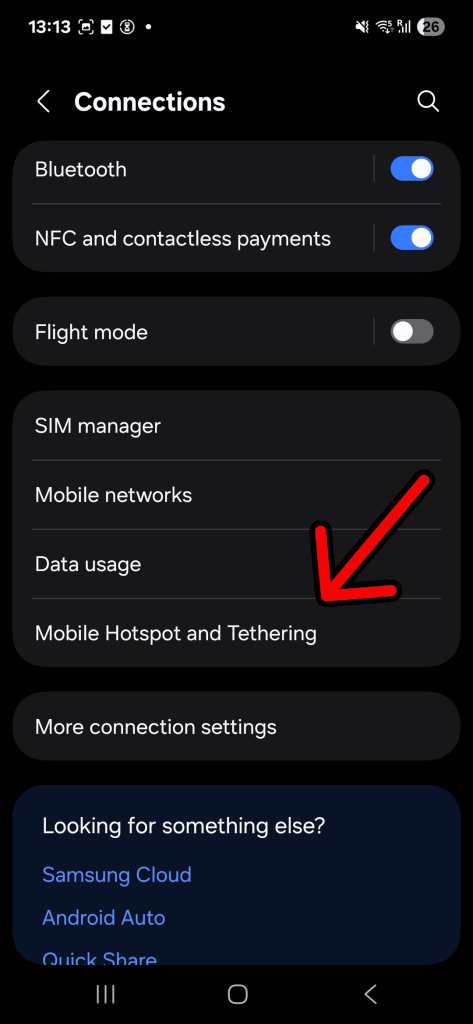
First, open your phone’s settings menu. The icon for this looks like a cog, and you’ll either find it on the home screen or in your list of apps.

Then, look for internet or connection settings, and tap “Hotspot”, “Personal hotspot”, or “Hotspot and tethering”. You may also be able to search for “hotspot” on newer phones.
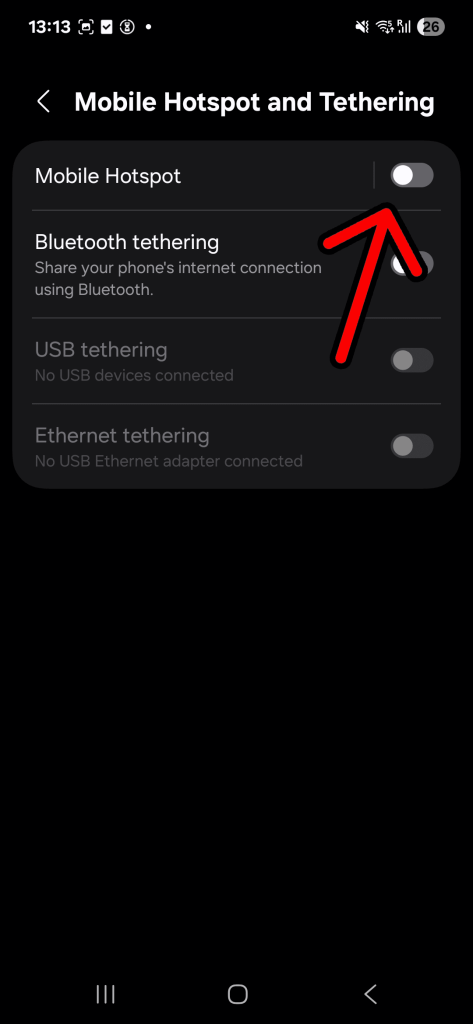
Turn on “Mobile Hotspot” or “Wi-Fi hotspot”. On Apple devices, toggle “Allow others to join”.
At this point, you just need the hotspot WiFi login details so you can connect to the network from your computer or other devices.
These details might be displayed immediately, or you might need to tap the hotspot name again to display them.
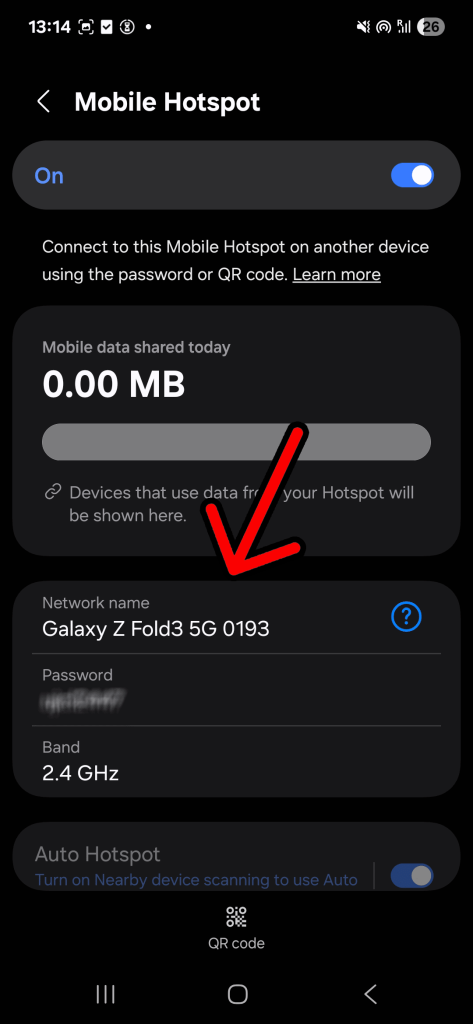
Once you have the hotspot enabled and know the WiFi login details, you can connect to it from your computer, and begin getting online using your phone’s data connection.
Normally, this involves clicking the WiFi symbol you see on your computer’s home screen, which might look something like this: 
Then, you’ll need to look for the hotspot’s network name shown by your phone, and log in with the password supplied.
SIM data limits
The one thing to think about when using this method is your mobile plan’s data limit.
If you have a basic tariff, you might not have a very high data limit, meaning things you do while on the hotspot could result in you hitting your quota before the month is over.
This also depends on what you do online, and how often you use the internet.
The things that use the most data are watching videos, downloading files, and viewing large quantities of images.
So if you only use the internet to look at websites and read emails, instead of using social media or streaming video, you do not need a very high data allowance.
In this case, and assuming you’re only online once or twice a week or so, a 10 gigabyte monthly data limit should be enough, while still giving you plenty of leftover usage for your mobile phone – again assuming you do not use apps such as YouTube or Netflix.
If you do stream videos or use the internet more often, a 50-100 gigabyte monthly allowance might be a better option.
Fortunately, SIM plans in the UK are fairly cheap, so if you need to upgrade your plan, this is not usually very expensive, unless you choose a major provider such as EE.
With a pay as you go SIM plan on a cheaper network, you can normally get a 50-100GB data allowance for £10-£15 per month or so, including unlimited calls and texts to UK numbers.
You can use this website to compare SIM deals on the market at the moment.
3. Use a social tariff
If you are on benefits or receiving another type of government support payment, you might be eligible to use a special type of discounted broadband deal, known as a social tariff.
Social tariffs are cheaper broadband deals that are only available to those who cannot afford a regular broadband contract.
Many people do not know that these deals exist, as they are not heavily advertised. However, most major broadband providers offer social tariffs.
This is not the most simple way of getting online, but it can be the cheapest – while also giving you a proper WiFi router and good connectivity.
To be eligible for a social tariff, you usually need to be receiving one of the following types of support payments:
- Universal Credit
- Pension Credit
- Jobseeker’s Allowance
- Employment and Support Allowance
- A Personal Independence Payment
To sign up, first navigate to the broadband provider’s website, and find their social tariff page. You may have to search directly for it on Google, as these pages can be quite hidden.
On this page, there will usually be a phone number you have to call to get started. You can’t normally sign up through the provider’s website directly, but you can usually do this on someone else’s behalf if need be.
Over the phone, you will have to verify your eligibility, based on the support payment you’re receiving.
You’ll need to set up a payment method, and the connection will be provisioned just like a regular broadband plan.
Before installation can occur, an engineer visit may be necessary if using a given broadband network or technology type (such as full fibre) at your address for the first time.
To learn more about social tariffs and see a full list of providers that offer them, read our full guide on the subject.
Related resources
Broadband Social Tariffs Explained & Provider List
Find out about social tariffs - a special type of discounted broadband deal available to those on beneifts.

Report: UK’s Worst Broadband – Mapping Digital Exclusion
We map digital exclusion in the UK by assessing the proportion of households in each census area with download speeds lower than 10 Mbps.

Tom is the founder of Broadband Savvy. He has nearly 10 years’ experience writing broadband tutorials, reviewing routers and internet service providers, and explaining broadband-related concepts. Tom is experienced as a writer, has appeared on national radio and in national newspapers, and also produces videos for the Broadband Savvy YouTube channel.
He currently specialises in writing content for Broadband Savvy designed to help people understand broadband jargon and terminology, increase their download and upload speeds, and improve their Wi-Fi connectivity. Tom also occasionally contributes to buyer’s guides and review articles on Broadband Savvy, utilising his knowledge of the broadband market in the UK.
When he’s not writing about broadband, you’ll find him hiking somewhere or playing on his Nintendo Switch.