
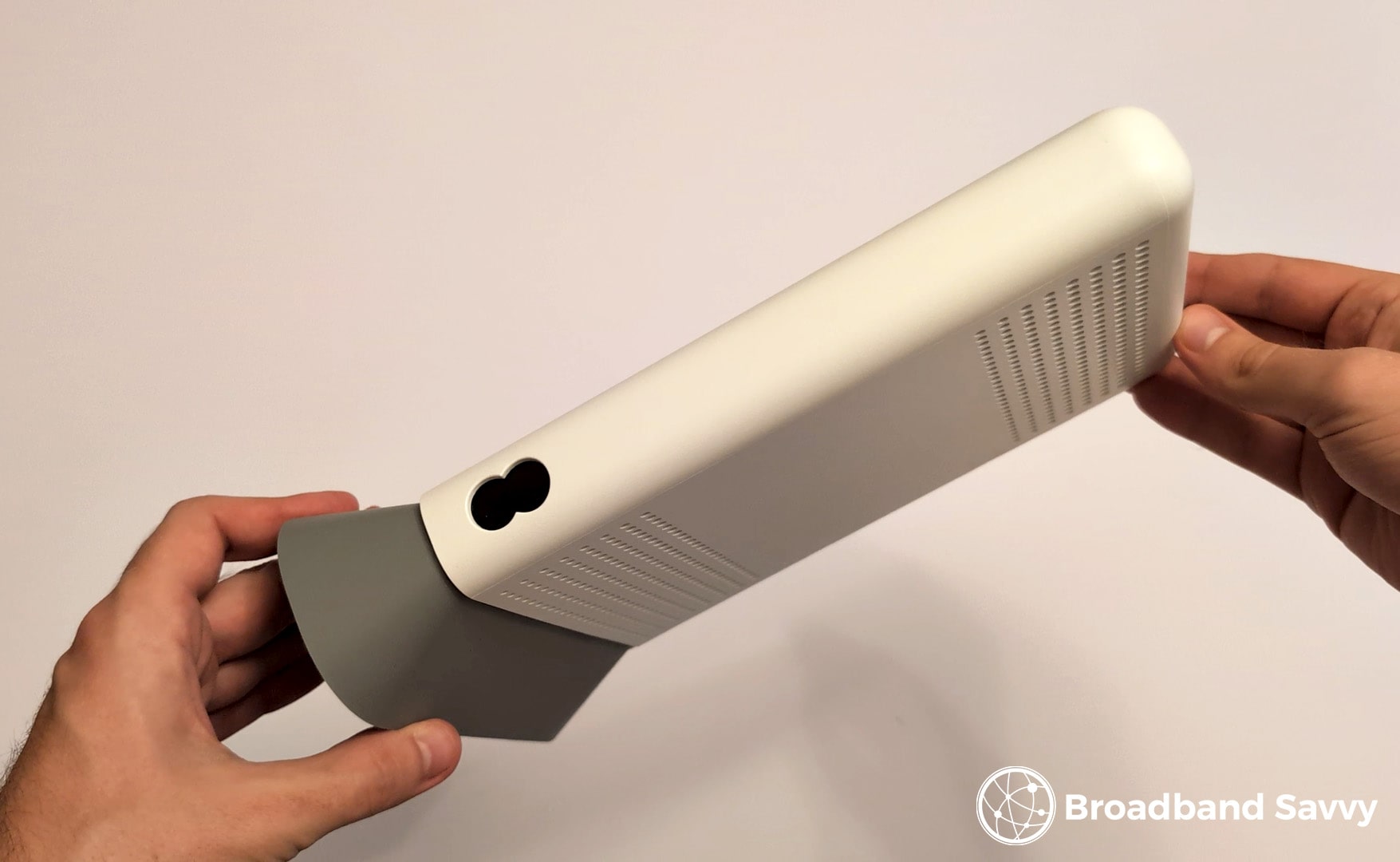
EE has recently started offering a WiFi 7 router as standard on nearly all of their broadband plans, called the Smart Hub 7 Plus.
Today, we’ve tested and reviewed this router on EE Broadband, to see if it’s any good.
We’ve assessed its WiFi signal strength, download and upload speeds, admin options, and more, to see if you should buy a broadband plan with this router.
But before we begin, check the EE Broadband website to see which of their deals come with the Smart Hub 7 Plus (or their upgraded Smart Hub 7 Pro router) when you’re reading this, as it can change over time.
Let’s get started.
Contents
- Router overview
- Unboxing & setup
- Settings & options
- WiFi coverage
- Speed tests
- Value for money
- Verdict: should you buy EE Broadband with this router?
Router overview
| Brand | EE |
| Name | Smart Hub 7 Plus |
| Dimensions | 25x3.5x16cm (approx.) |
| Maximum download speed | 2.5 Gbps |
| Ethernet ports | 4 (1x 2.5 Gbps, 3x 1Gbps) |
| Broadband protocols | FTTP |
| Digital voice protocols | DECT/FXS |
| WiFi | Dual-band Wi-Fi 7 (802.11be) - 2.4GHz 2x2 MIMO + 5GHz 4x4 MIMO |
| Maximum connected devices | 190 |
| Colour | White |
| EE Broadband Pricing | Check on EE |
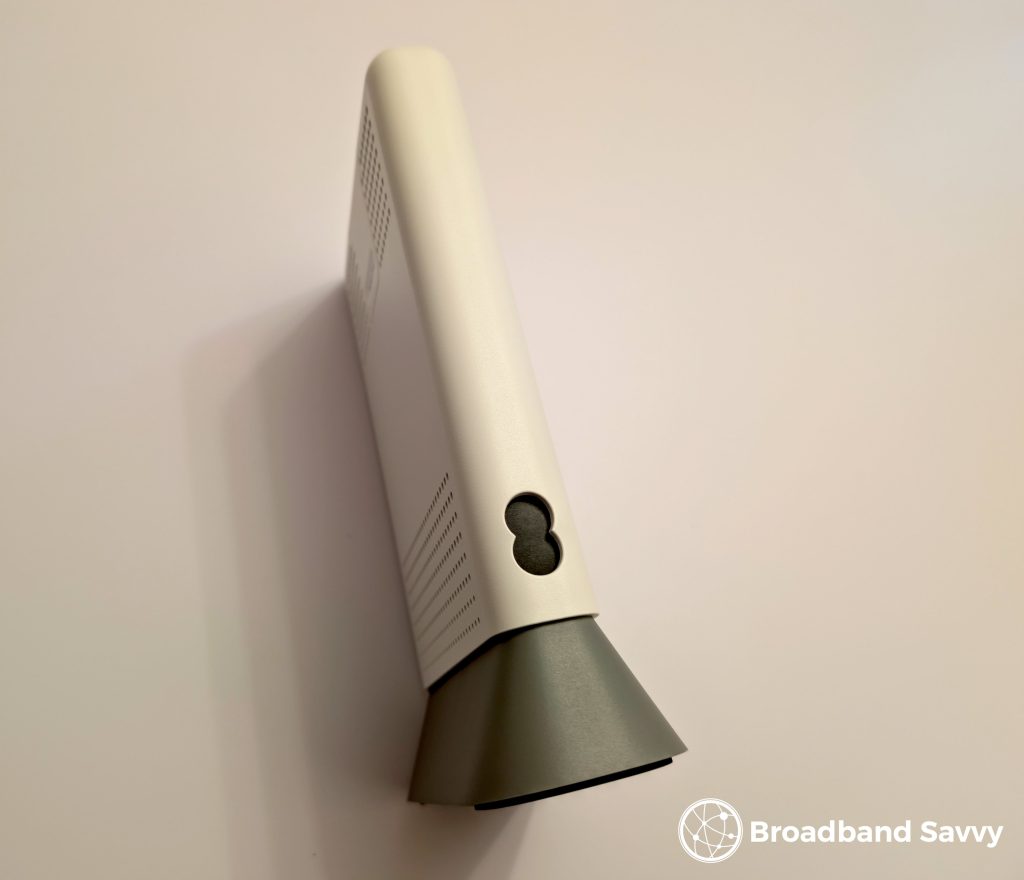
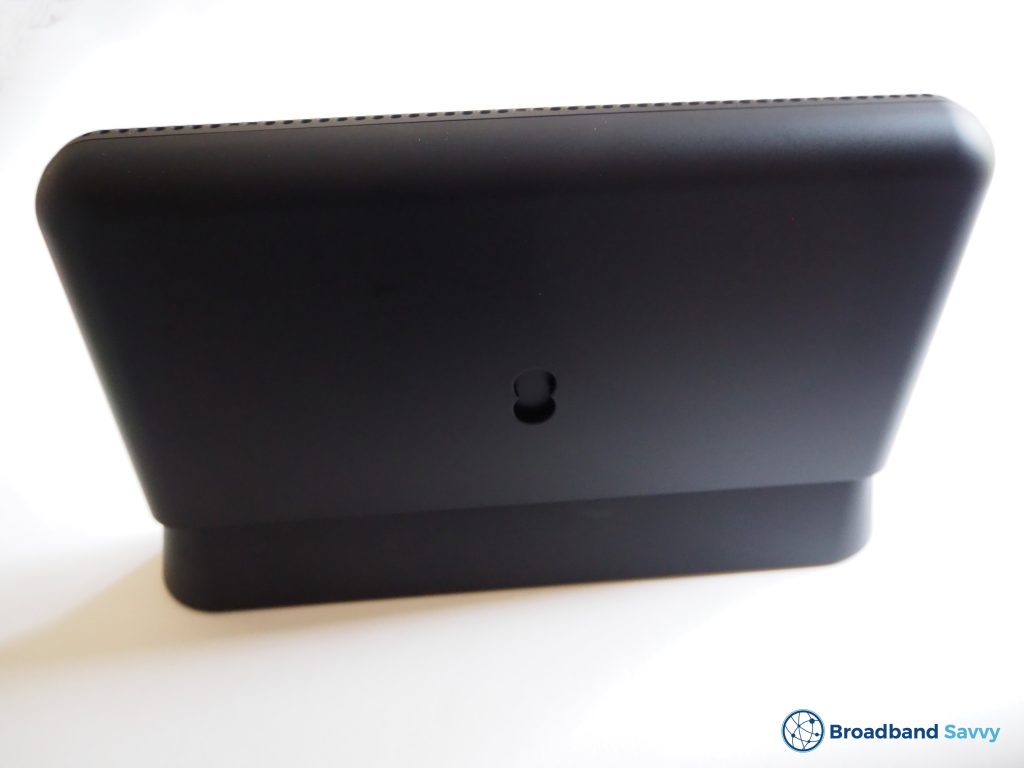
The Smart Hub 7 Plus is a dual-band WiFi 7 router currently offered by EE on most of their home broadband deals.
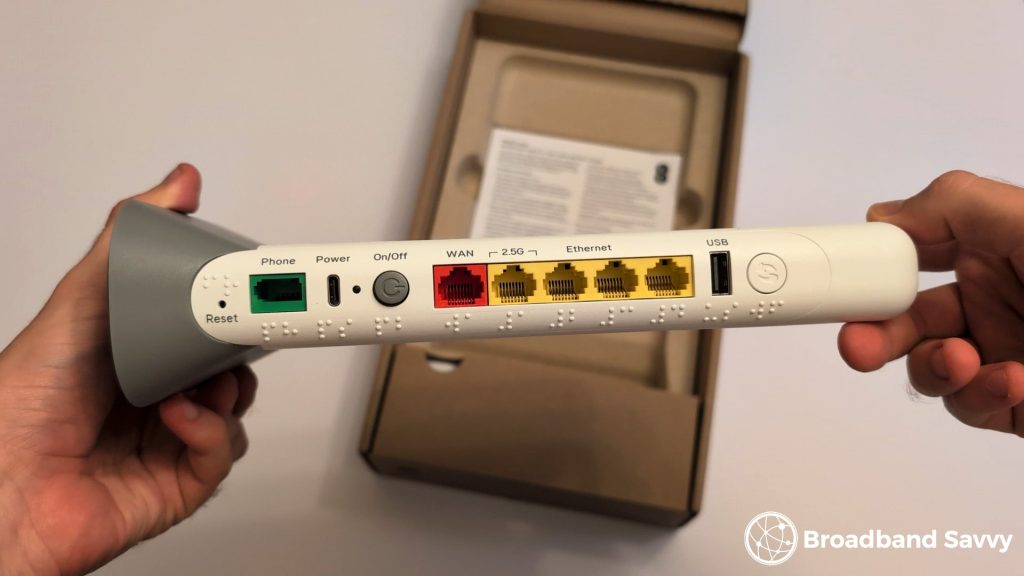
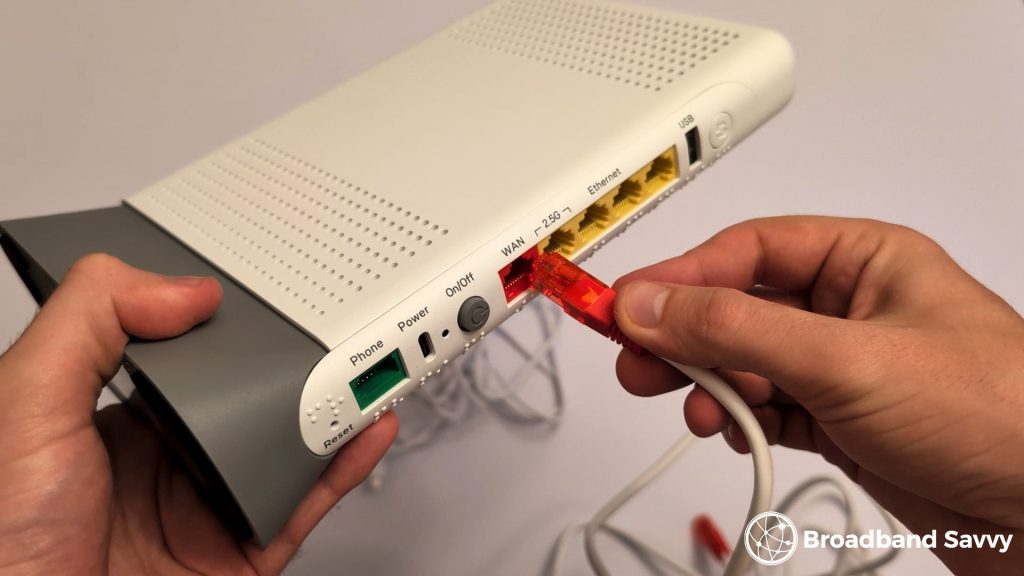
This router comes with one 2.5 Gbps and three 1 Gbps LAN ports, as well as a 2.5 Gbps WAN port.
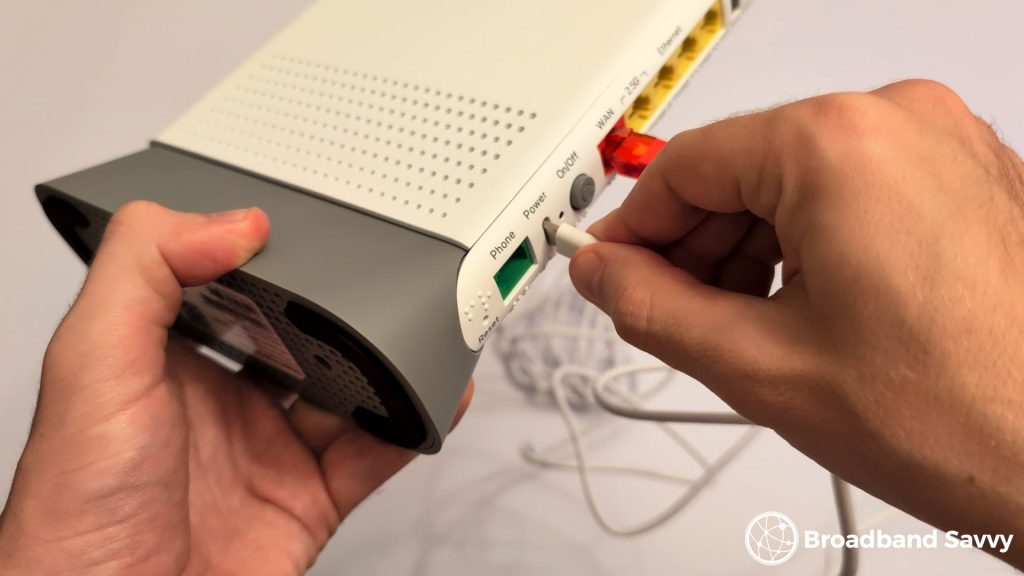
It also has a phone socket, a USB port, and a USB-C power port. There is a WPS button, an indented reset button, a power button, and braille labels for each.
Currently, this router is sent to new customers who buy any of EE’s “Core” or “Standard” broadband deals, though this can change over time.
Currently, if you buy EE’s fastest 1.6Gbps “Premium” plan, or any of their “Ultimate” tariffs, you’ll receive their Smart Hub 7 Pro router instead, which comes with tri-band instead of dual-band WiFi 7, and four 2.5 Gbps LAN ports instead of just the one.
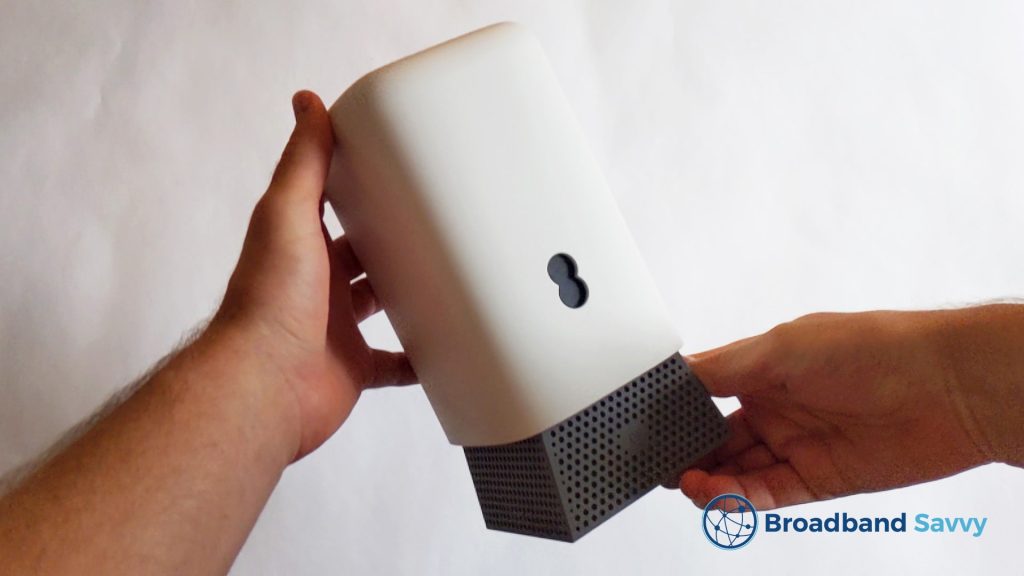
You can check which routers currently come with each of EE’s different broadband deals on their website. It’s a good idea to pay close attention to which router you’re getting before buying, as the devices attached to each tariff can change as the deals are updated.
The Smart Hub 7 Plus is an upgrade of the old Smart Hub Plus, which was a black router that came with WiFi 6. This device was previously supplied on EE Broadband plans other than their 1.6 Gbps tariffs, unless you paid for an upgrade to the Smart Hub 7 Pro.
Unboxing & setup
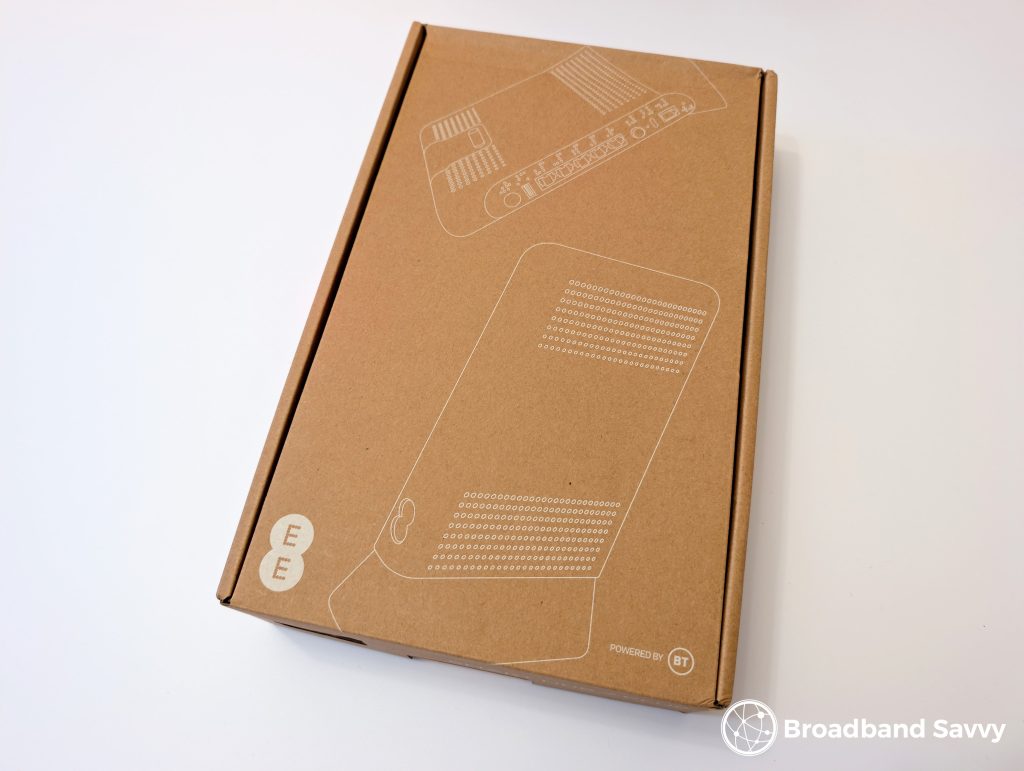
When you open the router box, you might notice that the overall package is quite barebones.
There is not a lot of information included – just a small information booklet, and apart from the router, the only other things you get in the box are its power cord, and an Ethernet cable.
If you’re upgrading to fibre to the premises (FTTP) broadband for the first time, you’ll likely need an engineer visit to get your new connection up and running. When they come, they’ll set up the router for you.
On the other hand, if you’re switching FTTP providers, you might need to set up the Smart Hub 7 Plus yourself.
Fortunately, this router is very easy to get started with.
First, remove any other routers you have set up, unplugging them from power and your broadband socket.
Plug one end of the LAN cable into the Smart Hub’s WAN port. Both the end of the cable and the port are marked in red.
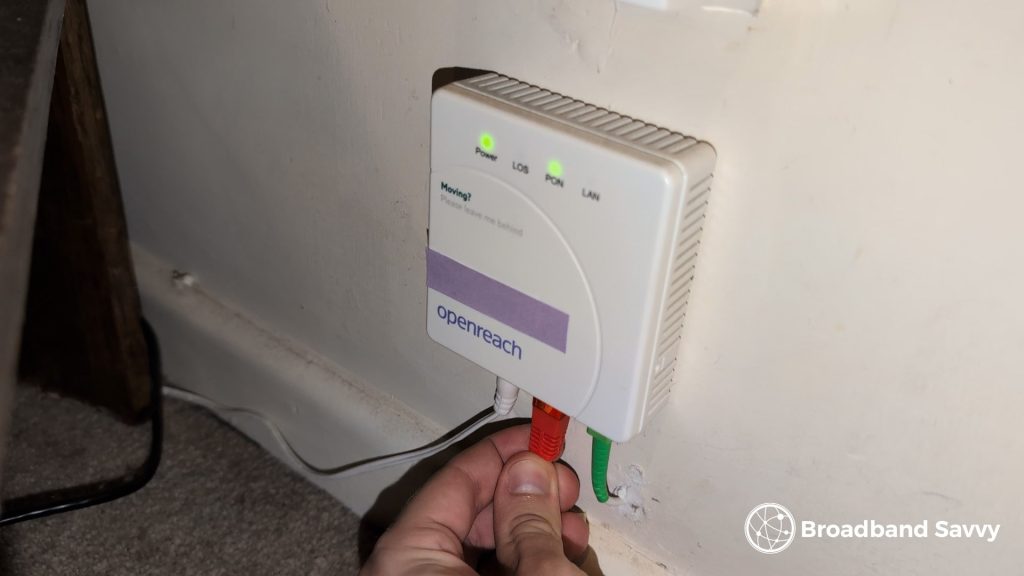
Then, plug the other end of this cable into your Openreach modem/broadband socket, located near the front of your house.
Now plug the router into power, and press the power button on the back, which is just above the power port.
The light on the front of the router should initially flash green, before eventually turning a solid turquoise colour when an internet connection has been established.
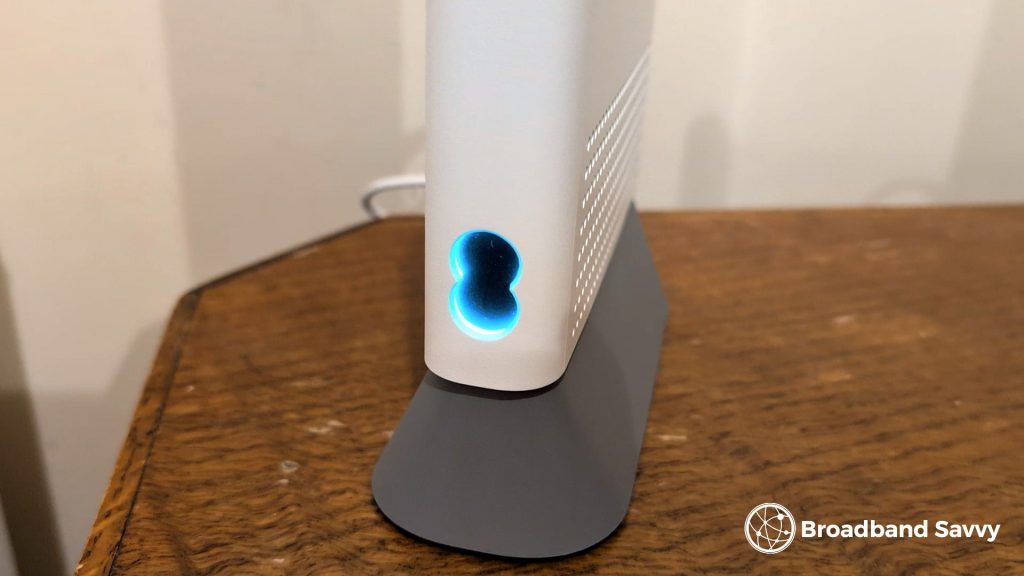
We had an issue with our router where the status light repeatedly cycled between flashing green and solid turquoise before we could get online.
It seems that the router had to restart a few times when we first connected it to our Openreach broadband socket, potentially because it was installing firmware updates. However, after about five minutes of this, the light stayed turquoise, and we were able to connect to the internet.
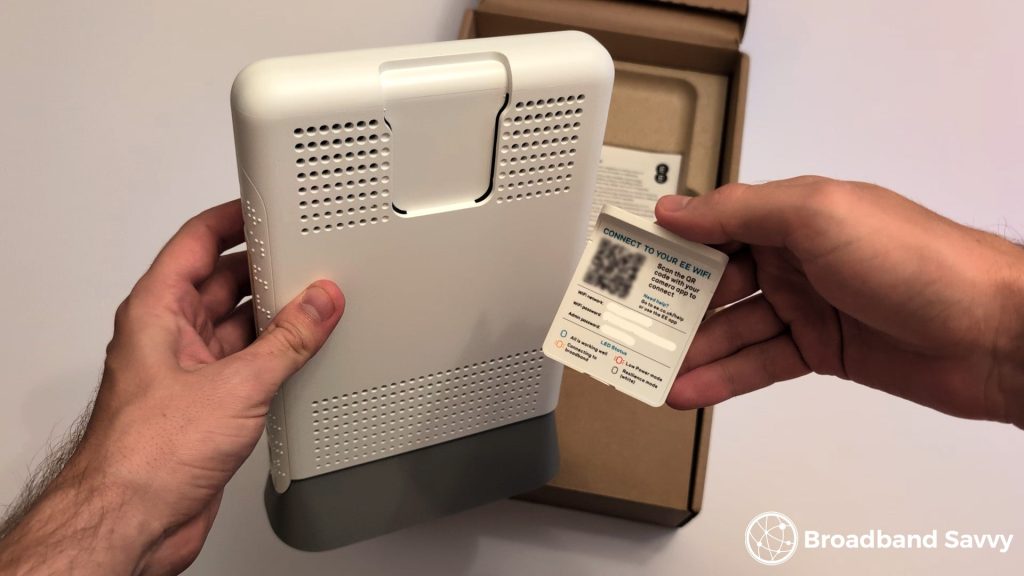
To do this, you can connect to WiFi using the SSID and password printed inside the plastic slide-out card on the top of the router, or by scanning the QR code.
Settings & options
There is a great range of settings and options available inside the Smart Hub 7 Plus admin settings, including some things you couldn’t do with most older BT and EE routers.
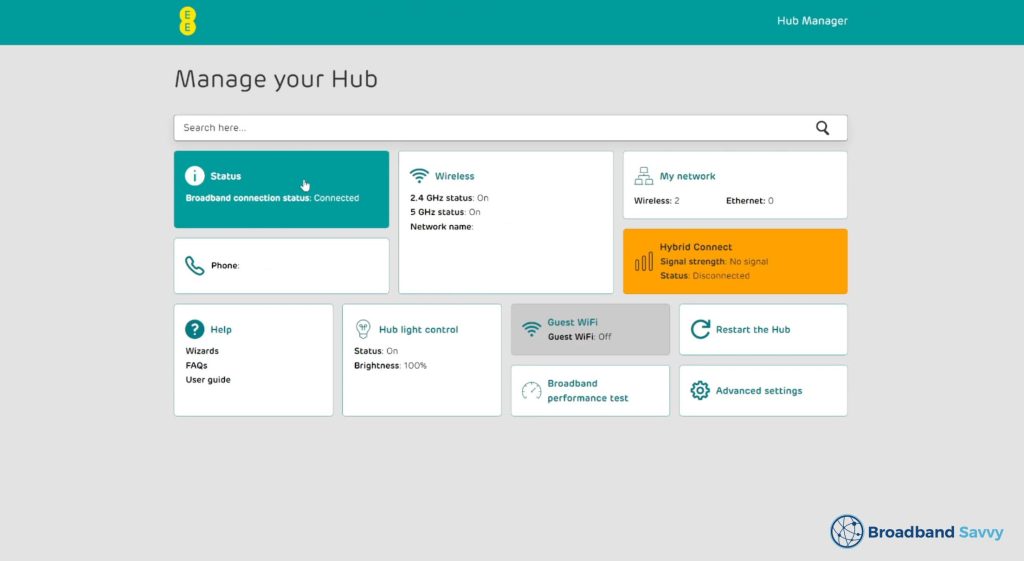
This user interface is the same as what’s available on the Smart Hub 7 Pro and the old Smart Hub Plus.
It allows you to:
- Easily monitor and control active devices on the network.
- Set up port forwarding.
- Change IPv6 settings, such as creating pinholes.
- Change IPv4 setting,s such as setting up a DHCP server.
- Manage WiFi extenders and 4G broadband backup devices.
- Enable/disable UPnP and DMZ.
- Modify WiFi settings, such as enabling a guest network, or turning off wireless service completely.
And we’re happy to report you can finally change your default DNS servers on this router, even though you couldn’t on most older BT and EE routers released over the last decade or so.
This is available under Advanced settings > My network > IPv4 configuration > DNS > Configure your IPv4 settings > DNS Servers.

On the whole, we like this interface, because it’s very intuitive to navigate and find what you need to change.
EE
Full Fibre Broadband
Speeds
150 Mbps – 1.6 Gbps
Price
Check on EEThere are some limitations though, for example, you can’t set up a VPN on the router.
Also, you can’t change the WiFi channel to the exact one you want to use. You have to choose one of three 2.4GHz channels that the router thinks are good, but cannot change the 5GHz channel from the one it has selected.
For most people, these are not big issues though. We found that the router does a good job of choosing WiFi channels automatically.
The other downside is, some other settings and utilities are only available inside the EE Broadband app, such as running EE’s native speed test function.
Fortunately though, most of the settings we want to manage with this router are available to change in the web interface.
WiFi coverage
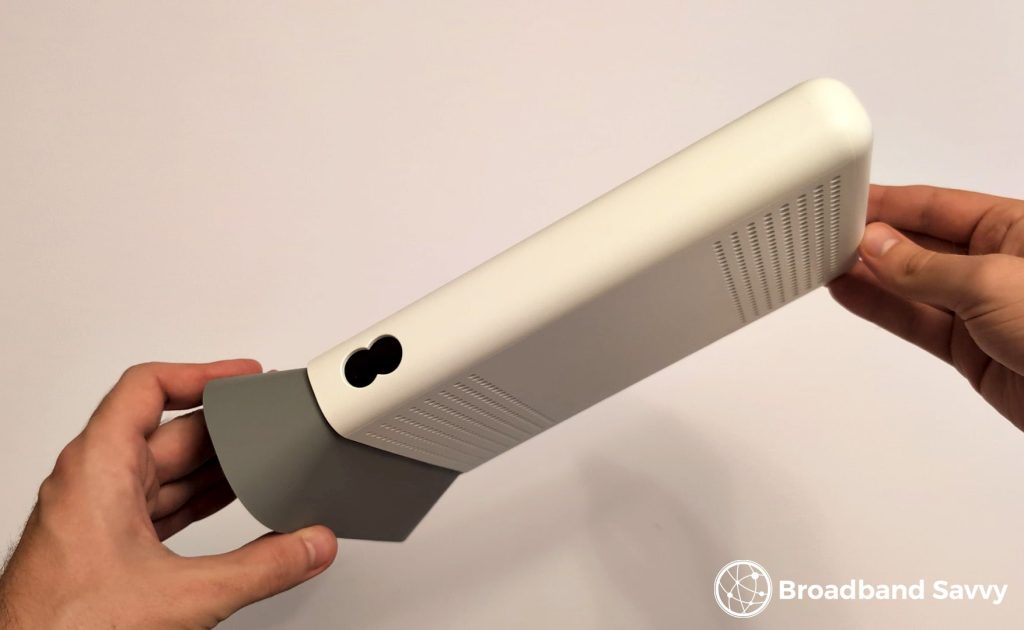
The EE Smart Hub 7 Plus offers really good WiFi signal in our experience.
We use this router in a four-bedroom, two-storey house, which has been renovated quite extensively. As a result, there are a lot of brick internal walls that WiFi signal has to pass through, especially to reach the upstairs rooms.
Despite this, we still get download speeds of at least 100 Mbps throughout the house using this router, even without a WiFi extender. Our latency also remains very low, typically below 10 ms at medium distance, and 15 ms at long distance.
We don’t have any WiFi dead spots, and can get online about halfway down the garden as well. Only about 25 metres away from where the router is installed by the front door does our signal begin to cut out.
So, we think that unless you have a very large house, the EE Smart Hub 7 Plus works really well, even without a WiFi extender.
If you want, you can add on EE’s WiFi Extender 7 Plus when buying if you think you might run into signal issues, or choose one of their “Premium” plans that come with a signal booster free of charge.
Click here to see what this extender add-on costs at the moment, and to compare the prices of EE’s Core, Standard, Premium, and Ultimate broadband deals.
Speed tests
We tested the Smart Hub 7 Plus on EE’s second-fastest 900 Mbps broadband plan.
This means our speeds are advertised as:
- Download: 900 Mbps
- Upload: 110 Mbps
Up close to the router, we get basically the full speeds on offer from our connection, which is great given that these sorts of ultrafast downloads can be difficult to achieve over WiFi most of the time.
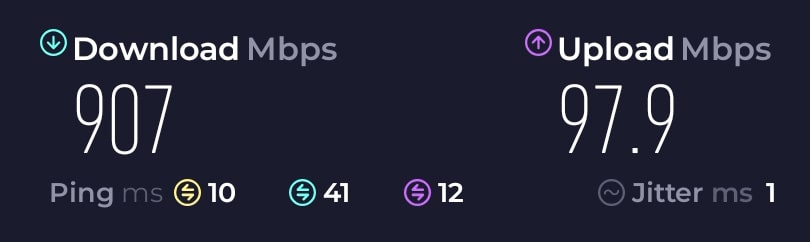
- Download speed: 907 Mbps
- Upload speed: 97.9 Mbps
- Latency: 10 ms
With the old WiFi 6 Smart Hub Plus, our download speeds normally maxed out at about 700 Mbps over WiFi.
At longer range, we typically get download speeds of around 400 Mbps at medium distance, or 100 Mbps at long distance from the router.
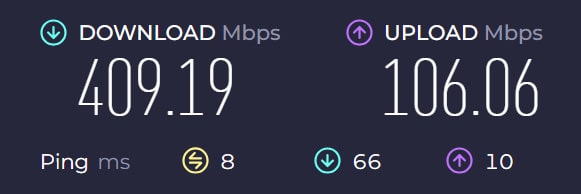
- Download speed: 409.19 Mbps
- Upload speed: 106.06 Mbps
- Latency: 8 ms
Our thoughts on this router’s speeds
The speeds we get with EE’s WiFi 7 router are very strong.
We haven’t been able to get 900 Mbps over WiFi from our connection before, so it’s great to see the EE Smart Hub 7 facilitate this, especially if you often use devices closeby to the router.
And over an Ethernet connection, the router has plenty of ports, including a 2.5 Gb option, allowing it to deliver its full speeds to different devices that have an Ethernet port, like computers and games consoles.
Value for money
We think that given how well this router performs, and the prices EE is charging, the deals this router is available on offer great value for money.
Most other major broadband providers, like Sky and BT, are still shipping outdated WiFi 5 routers by default on tariffs with a similar monthly cost to what EE charges.
EE’s customer support and service consistency have been very good in our experience. We’ve used them for about three years now, only recently upgrading to the Smart Hub 7 Plus, and haven’t had any issues with dropouts or poor performance.
There are no upfront fees on any EE Broadband deals, no matter which of their routers you get, and you have the choice of a 12 and a 24 month contract, which is nice.
The biggest weakness of EE from a value for money point of view is their 1.6 Gbps plans are very expensive, especially given that the upload speed is not that much better than on the 900 Mbps plan.
But we think that the deals that the Smart Hub 7 Plus comes with, which tend to be the cheaper ones, offer really great value for money.
Should you pay more for a plan with the EE Smart Hub 7 Pro instead?
We would generally not recommend choosing one of EE’s more expensive broadband deals to get the 7 Pro instead of the 7 Plus router.
The Smart Hub 7 Pro does come with tri-band WiFi, but it does not offer a big performance advantage over the cheaper router in our experience.
Both routers have the same settings you can adjust, and they’re both easy to set up.
Most of EE’s add-ons on their more expensive plans, other than the slightly better router and the WiFi extender, are not worth paying more for in our opinion.
So, unless you need the Pro router for its three extra 2.5 Gbps LAN ports, or tri-band WiFi, we would stick to EE’s 500 or 900 Mbps Core plans in most cases.
Verdict: should you buy EE Broadband with this router?

There is a lot to like about the EE Smart Hub 7 Plus:
- It offers fast speeds and strong WiFi signal, even at distance.
- It’s available as standard with EE Broadband no matter which deal you buy – most other broadband providers’ WiFi 7 routers are only offered on premium plans.
- It’s easy to set up, has an intuitive web interface, and is the first EE router in a long time to allow you to change your DNS servers.
Overall, we rate EE Smart Hub 7 Plus 4.5 out of 5. This is probably the best default router offered by any major broadband provider in the UK at the moment.
Remember, check the EE website to see which deals they’re currently shipping the Smart Hub 7 Plus on, as it can change over time.
And if you have any questions about this router, and our experience with it, leave us a comment below, and we’ll get back to you.
Related posts

About the author

Tyler is the co-founder of Broadband Savvy. He has been helping people improve their broadband connectivity since 2018 by writing about fibre broadband and mobile broadband providers, as well as creating tutorials to help people improve their broadband speeds and Wi-Fi signal.
Tyler is responsible for the majority of buyer’s guides and broadband reviews published on Broadband Savvy. He has a wealth of experience testing and reviewing different broadband tariffs, including fibre internet plans, as well as 4G and 5G broadband deals. He is responsible for testing and evaluating Wi-Fi routers, performing speed and latency tests, and comparing the value for money of different broadband providers on the market in the UK.
Before co-founding Broadband Savvy, Tyler had a long history of tinkering with computers. He built his first PC at the age of 12, and since then, he’s become obsessed with all things networking and internet-related. He’s a massive gamer, loves Rocket League, and also plays Sunday League football.